


Regularly updating your password is a simple way to keep your Databox account secure — especially if you suspect unauthorized access, have recently shared your credentials, or are following your organization's security policy. You can change it at any time from your profile settings, and you'll need your current password to complete the process.
- Go to Account Management > Profile.
- Scroll to the Password & Security section and click Change next to Password.
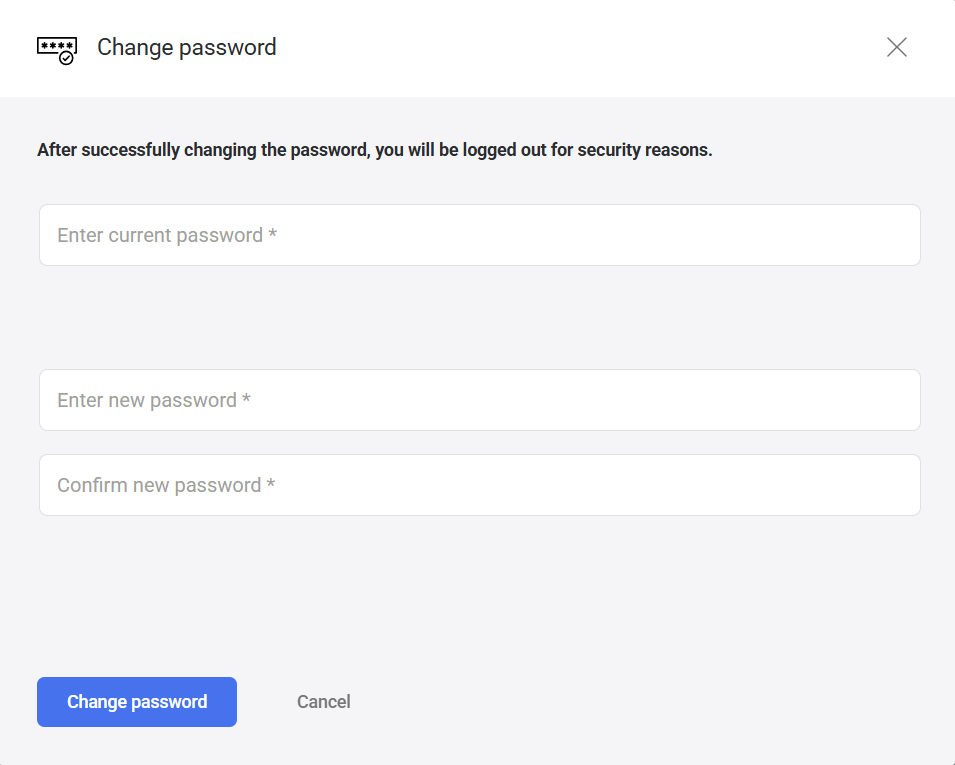
- In the Change password modal, enter your current password in the Enter current password field.
- Enter your new password in the Enter new password field.
- Re-enter your new password in the Confirm new password field.
- Click Change password.

FAQ
Are there any password requirements?
Databox requires passwords to be at least 8 characters long and include at least 1 lowercase character, 1 uppercase character, and 1 special character. If your new password doesn't meet the requirements, an error will appear in the modal before the change is saved.
Can I change my password if I log in with Google or another SSO provider?
If your account is linked to Google or an SSO provider, you may not have a Databox password set. Manage your password through the external provider instead.
What if I've forgotten my current password?
You need your current password to complete the change. If you've forgotten it, log out and use the Forgot password? link on the login page to reset it by email.


