
Availability
 Users, Editors, and Admins
 All organizations and accounts
 One or more features exclusive to select subscription plans or add-ons
X Ads (formerly Twitter Ads) is the paid advertising platform on X, enabling businesses to promote content across the X feed to targeted audiences based on interests, keywords, follower lookalikes, and demographics. Campaigns span awareness, engagement, and conversion objectives, with performance tracked at the campaign, ad group, and creative level. Connecting X Ads to Databox lets you pull that performance data into dashboards and reports alongside your other paid channels, so you can monitor spend efficiency, compare channel results, and share insights with stakeholders without logging into the platform.
If your credentials don't include full access to the data source, make sure your access level meets any permission requirements listed in the Specification section of the integration's page in the Metric Library.
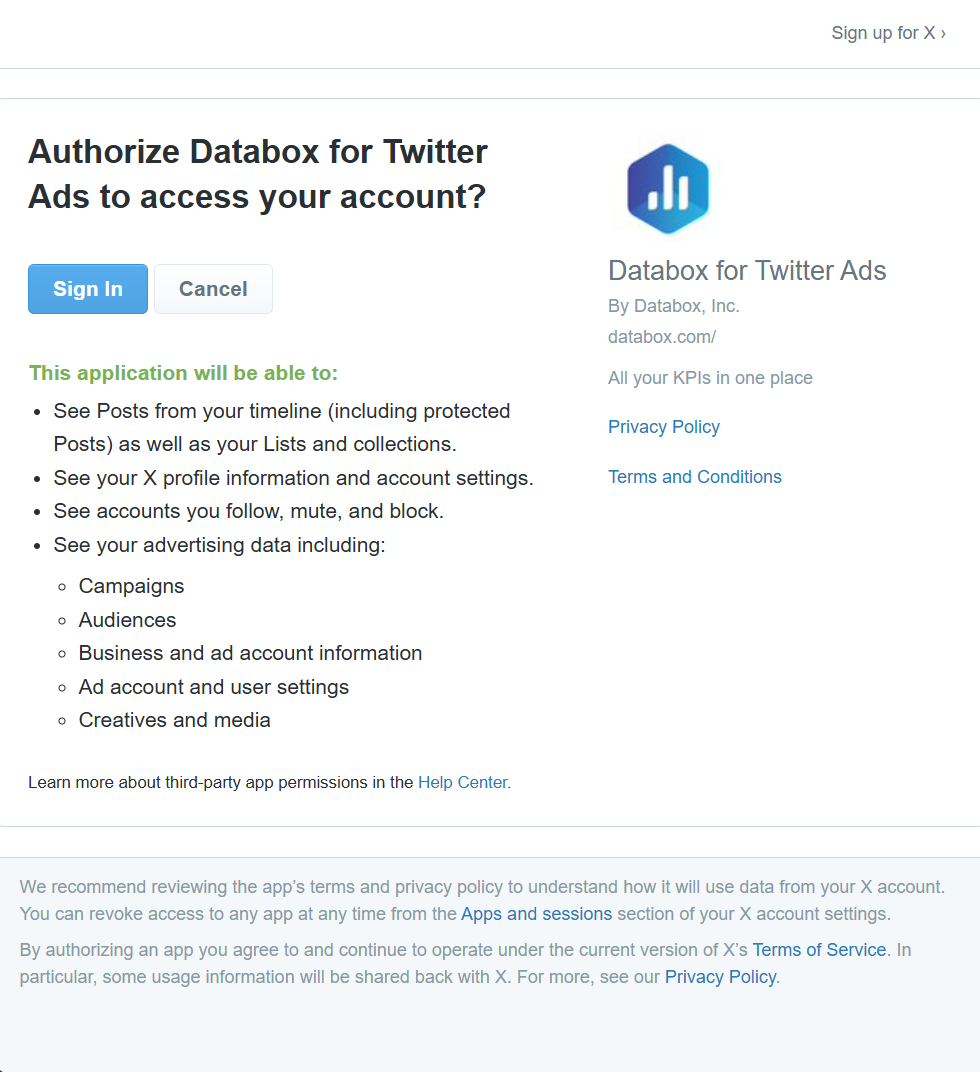
To connect X Ads to your Databox account for the first time, you'll be redirected to X to authorize access.
If you've already established a connection, you can reuse it to add new accounts, as long as those accounts are accessible with the existing connection's credentials.
On the authorization screen, review the requested permissions and click Sign In to grant Databox access to your X Ads data.
Choose the X Ads account you want to report on. If you manage multiple ad accounts, you'll be prompted to select the specific account you want to connect to Databox.

The X (Twitter) Ads integration supports the creation of datasets, which allow you to structure and format your X (Twitter) Ads data for more flexible reporting in Databox. By organizing your data into a tabular format, datasets make it easier to filter, segment, and visualize key metrics across projects, clients, and team members.
The entity relationship diagram (ERD) below illustrates how data is organized within the X (Twitter) Ads integration, displaying the available views and columns, as well as the relationships between them (primary and foreign keys). This diagram represents the schema, or structure, of the data and helps you understand the underlying data model. With this context, you can create datasets using the relevant views and columns to build custom metrics tailored to your reporting needs.
For comprehensive details on metrics, data availability, templates, specifications, usage guidelines, and other key information, refer to the resources listed below.


FAQ
What data does Databox access when I authorize X Ads?
Databox requests read-only access to your advertising data, including campaigns, audiences, ad account information, and creatives. No changes are made to your campaigns or account settings, and you can revoke access at any time from the Apps and sessions section of your X account settings.


