
Availability
 Users, Editors, and Admins
 All organizations and accounts
 One or more features exclusive to select subscription plans or add-ons
Snapchat Ads is a mobile-first advertising platform that enables businesses to reach a highly engaged younger audience through full-screen video, image, and story-based ad formats. It is used by brands to drive awareness, app installs, and conversions among Snapchat's predominantly Gen Z and millennial user base. Connecting Snapchat Ads to Databox brings your campaign, ad set, and ad-level data into a unified reporting environment alongside your other paid channels — so you can monitor spend efficiency, track swipe-through rates and conversions, and build dashboards that keep your team focused on what matters.
If your credentials don't include full access to the data source, make sure your access level meets any permission requirements listed in the Specification section of the integration's page in the Metric Library.
To connect Snapchat Ads to your Databox account for the first time, log in using your Snapchat credentials.
If you've already established a connection, you can reuse it to add new accounts, as long as those accounts are accessible with the existing connection's credentials.
In the Snapchat login screen, enter your Username or Email and click Next. You can also sign in via Use phone number instead or Continue with Google.
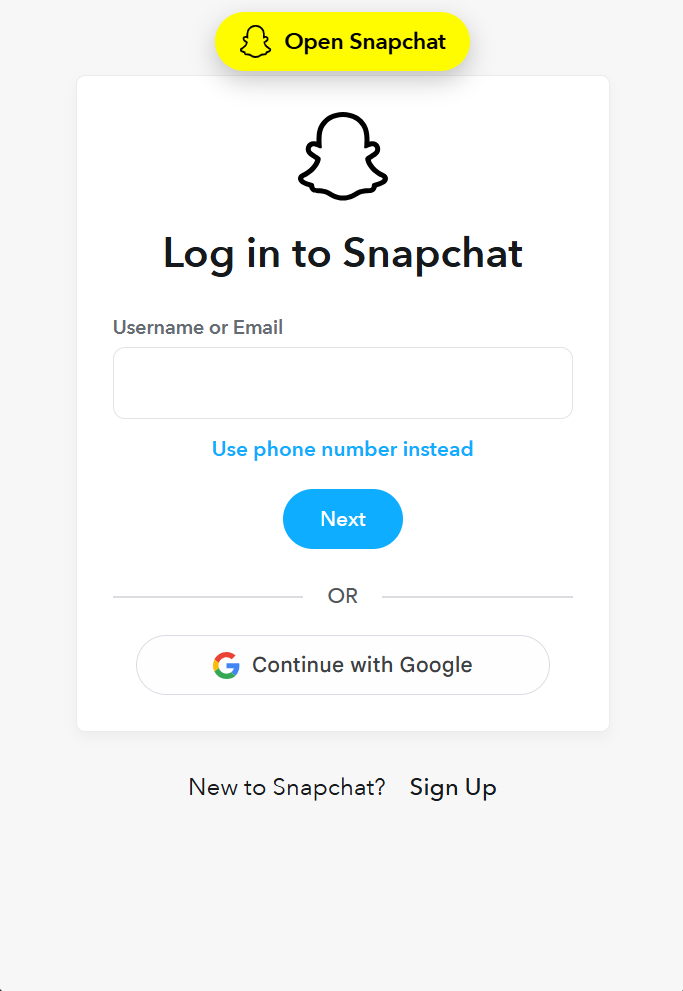
After signing in, select the Snapchat organization you want to connect. If your Snapchat account is associated with multiple organizations, choose the one that contains the ad account you want to report on.
Choose the Snapchat Ads account you want to report on. If you manage multiple ad accounts within your organization, you will be prompted to select the specific account you want to connect to Databox.
The Snapchat Ads integration allows you to create custom metrics using the metric builder, ideal for visualizing data not included in the basic metrics offered by the integration.
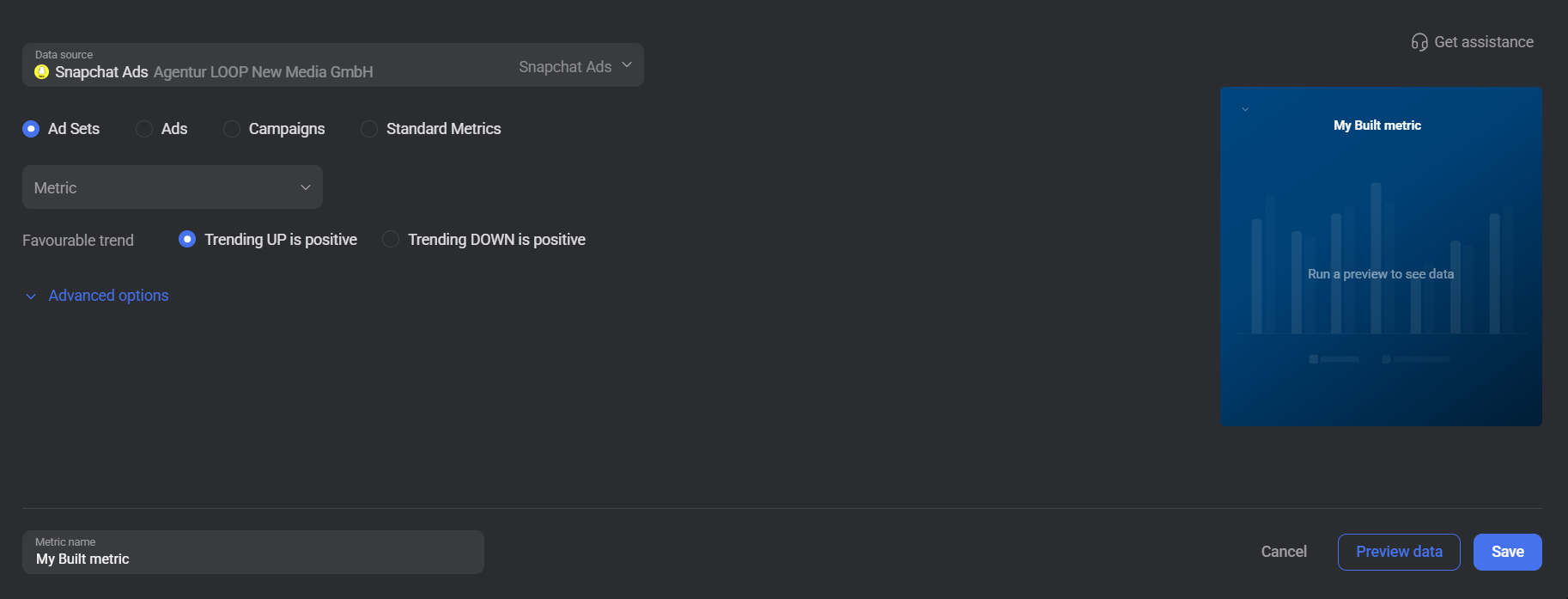
To create a custom metric, start by selecting a metric from the Metric selector. Next, customize your metric by optionally adding a dimension and applying one or more filters. The available options depend on the selected entity and data type (e.g., number, text, etc.).
The entities accessible for metric creation are listed below. A Standard Metrics tab is also available, providing access to out-of-the-box account-level metrics without requiring any additional configuration.
Campaigns provides performance data aggregated at the campaign level. Use this entity to evaluate how each campaign is contributing to your advertising goals — tracking metrics such as Amount Spent, Total Impressions, Swipe Up Rate, Purchase ROAS, and conversion events. Dimensions such as Country, Gender, Age, and OS are available to segment your campaign data further.
 In Snapchat Ads: Go to the Ads Manager and select the Campaigns tab.
Ad Sets provides performance data at the ad set level, allowing you to analyze how different audience targeting configurations and delivery settings are performing within each campaign. Available metrics include Paid Reach, Total CPM, Cost per Lead, App Installs, and story-level engagement metrics such as Story Opens and Story Completes.
In Snapchat Ads: Go to the Ads Manager and select the Ad Sets tab.
Ads provides performance data at the individual ad level, making it possible to compare creative performance across swipe rates, video completion rates, and conversion metrics. Use this entity to identify which specific ads are driving results and to inform creative iteration decisions.
In Snapchat Ads: Go to the Ads Manager and select the Ads tab.

The Snapchat Ads integration supports the creation of datasets, which allow you to structure and format your Snapchat Ads data for more flexible reporting in Databox. By organizing your data into a tabular format, datasets make it easier to filter, segment, and visualize key metrics across projects, clients, and team members.
The entity relationship diagram (ERD) below illustrates how data is organized within the Snapchat Ads integration, displaying the available views and columns, as well as the relationships between them (primary and foreign keys). This diagram represents the schema, or structure, of the data and helps you understand the underlying data model. With this context, you can create datasets using the relevant views and columns to build custom metrics tailored to your reporting needs.
For comprehensive details on metrics, data availability, templates, specifications, usage guidelines, and other key information, refer to the resources listed below.


FAQ
Why are some conversion metrics not returning data when I select a dimension?
Conversion metrics such as Purchases, Sign Ups, and App Installs that use a Conversion Type of Web, App, or Offline require the dimension to be set to None. If you select any other dimension alongside these conversion types, Snapchat's API will not return data. Set the dimension to None to retrieve conversion data segmented only by the conversion type.
What dimensions are available for segmenting Snapchat Ads metrics?
Available dimensions depend on the selected metric and are loaded dynamically from the Snapchat API. Commonly available dimensions include Country, Gender, Age, Lifestyle Category, OS, Make, Region, DMA, and None. Not all dimensions are supported for every metric — if a dimension is unavailable for the metric you have selected, it will not appear in the dimension selector.


