Availability
 Users, Editors, and Admins
 All organizations and accounts
 Exclusive to select subscription plans
As an account grows, so does the number of metrics, datasets, dashboards, and reports built inside it — some maintained and accurate, others outdated, duplicated, or built for a one-off need. Without a way to tell them apart, anyone reviewing performance, or asking Genie a question, has to guess which numbers to trust.
Verification lets you mark an asset as reviewed and trustworthy. A verified badge then appears everywhere that metric, dataset, dashboard, or report is used, along with a record of who verified it and when. Genie, the Databox AI Assistant, also prioritizes verified assets when answering questions, so its answers are grounded in data your team has already approved.
Verifying is available from the asset's options menu, or from a Verified toggle in its Details panel, depending on the asset type.
From the list
- Go to Reporting & analytics > Metrics > Custom Metrics or Data Manager.
- Find the metric or dataset you want to verify.
- Click the drop-down arrow (
 ) next to action button and select Verify.
From the metric or dataset
- Open the metric in Metric Insights or the dataset in view mode.
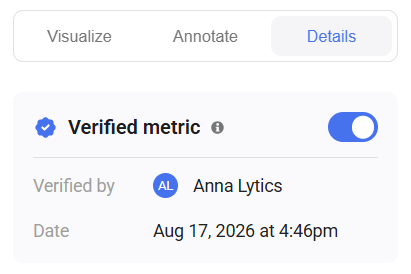
- Under the Details tab, turn on Verified metric.
From the list
- Go to Dashboards or Reports.
- Find the dashboard or report you want to verify.
- Click the drop-down arrow () next to the action button and select Verify.
From the dashboard or report
- Open the dashboard or report.
- Click the three dots (
 ) to open the options menu.
 - Select Verify.
Follow the same method you used to verify the asset — the menu option or toggle now reads Unverify (or turns off, for a Details panel toggle) once the asset is verified.
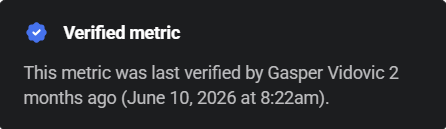
Once verified, a blue verified badge ( ) appears next to the asset's name everywhere it's listed or referenced. Hover over the badge to see who verified the asset and when.
FAQ
Do I need to re-verify an asset after I edit it?
Databox doesn't automatically remove verification when you edit an asset. Review the changes and re-verify the asset if you want the verification date to reflect the latest version.
Does verifying an asset restrict who can edit it?
No. Verification is a status indicator, not a permission control. Anyone with edit access to the asset can still make changes to it.
Is the verified badge visible to everyone with access to the asset?
Yes. Anyone who can already view the metric, dataset, dashboard, or report sees the verified badge and its verification history.
Will Genie still use unverified assets to answer questions?
Yes. If no verified asset satisfies a question, Genie can still draw on other available data, subject to the same permissions as the person asking.


