
Availability
 Admins
 Organizations and self-managed accounts
 Exclusive to select subscription plans and add-ons
When clients interact with your reporting environment — logging in, viewing dashboards, or receiving automated notifications — they see Databox branding by default. White-labeling replaces that with your own: a custom login domain, your company logo, a branded email sender, and more. The result is a seamless experience where clients see your company, not the platform powering it.
All white-label options are on the Settings > White-labeling tab. Each option has its own toggle and shows a preview of where your branding appears.
A custom domain replaces app.databox.com with your own URL across the web app login and all shareable dashboard links. Several branding options below need it first. For setup instructions, see Set up a custom domain.
White-label all outgoing notifications so emails arrive from your company's address instead of Databox's. For setup instructions, see Set up a custom email domain.
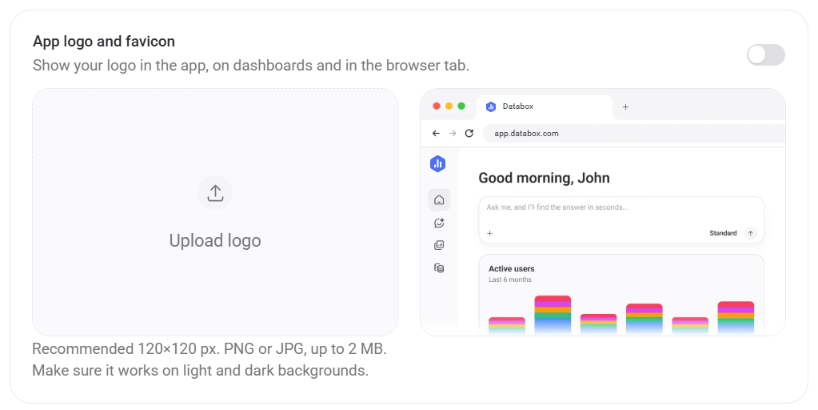
Your logo replaces the Databox logo in the app, on dashboards, and in the browser tab.
- Go to Settings > White-labeling.
- Under Logos and images, turn on App logo and favicon.
- Click Upload logo and select your file. Use a 120×120 px PNG or JPG of up to 2 MB.

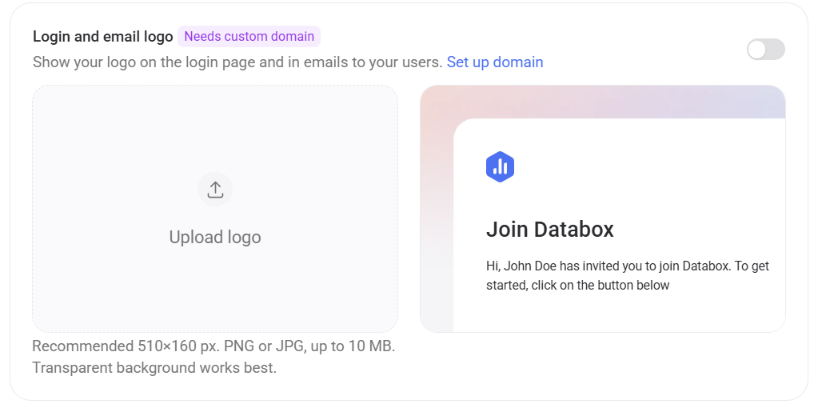
Your logo replaces the Databox logo on the login page and in all emails sent to your users. A custom domain must be set up first.
- Go to Settings > White-labeling.
- Under Logos and images, turn on Login and email logo.
- Click Upload logo and select your file. Use a 510×160 px PNG or JPG of up to 10 MB. A transparent background works best.
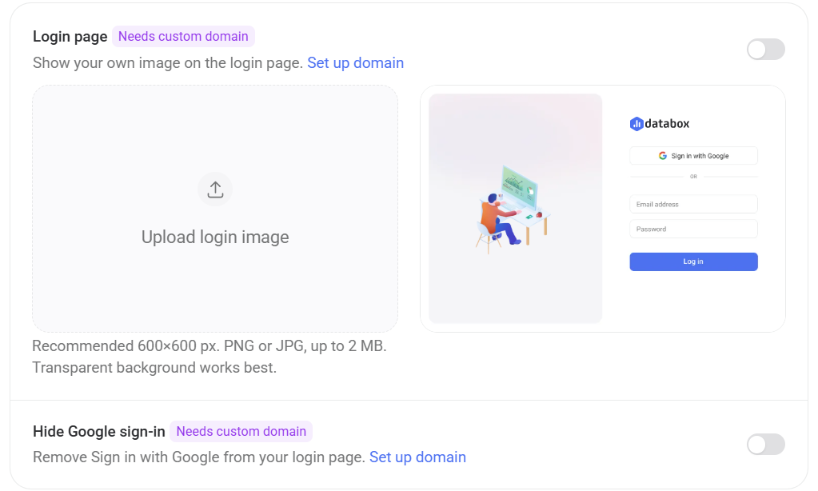
You can replace the default illustration on the login page with your own image, and remove the Sign in with Google option. Both apply only when users sign in through your custom domain.
- Go to Settings > White-labeling.
- Under Logos and images, turn on Login page.
- Click Upload login image and select your file. Use a 600×600 px PNG or JPG of up to 2 MB. A transparent background works best.
- To remove Google sign-in from your login page, turn on Hide Google sign-in.
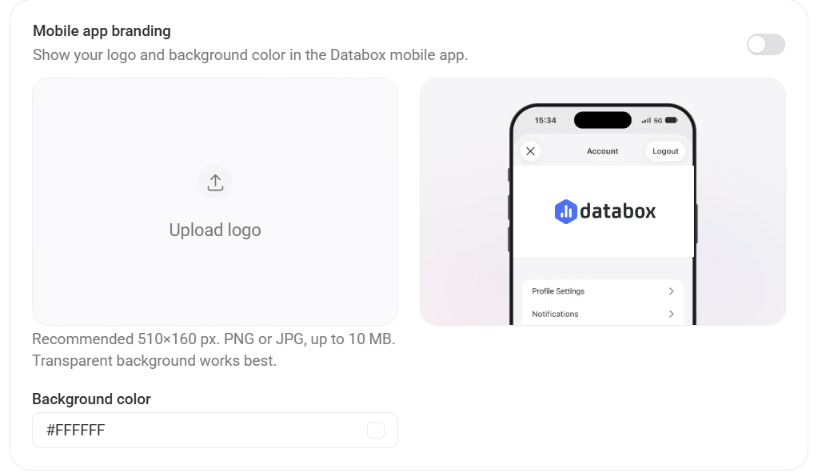
You can show your logo and a background color of your choice in the Databox mobile app.
- Go to Settings > White-labeling.
- Under Logos and images, turn on Mobile app branding.
- Click Upload logo and select your file. Use a 510×160 px PNG or JPG of up to 10 MB.
- Enter a hex code in the Background color field.

Turn on Hide "Powered by Databox" under Logos and images to remove the label from shared dashboards and show a neutral browser tab icon on shareable pages.
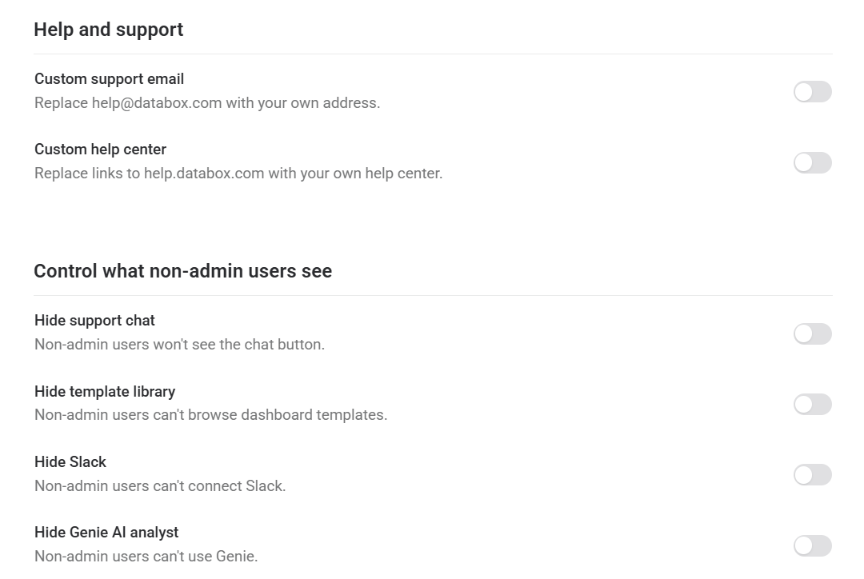
Under Help and support, point users to your own support channels instead of Databox's:
- Custom support email — replaces
help@databox.comwith your own address. - Custom help center — replaces links to
help.databox.comwith your own help center.
Under Control what non-admin users see, hide Databox features from users who aren't Admins:
| Option | What it does |
|---|---|
| Hide support chat | Non-admin users don't see the chat button. |
| Hide template library | Non-admin users can't browse dashboard templates. |
| Hide Slack | Non-admin users can't connect Slack. |
| Hide Genie AI analyst | Non-admin users can't use Genie. |
Some elements are automatically hidden for non-admin users in white-label accounts without any configuration required:
- In-app banners — The "Read More" link on status or maintenance banners is hidden.
- Product Roadmap links — Any in-app roadmap links are hidden.
- Data source help content — These reference Databox and are hidden automatically.
Some elements cannot be white-labeled due to technical or platform constraints:
- Mobile app name and store icon — Requires Apple and Google app store approval.
- OAuth authorization windows — When connecting data sources, authorization windows may identify Databox as the requesting application. This is required by the OAuth protocol.
FAQ
Can I purchase the White-Label add-on for individual accounts?
Yes. You can purchase one White-Label add-on per account to apply separate white-label settings to each. Contact the support team via in-app chat or email help@databox.com for details.
If I hide Slack after a non-admin user has already connected it, does their connection stop working?
No. A user who already connected Slack before the option was turned on keeps their connection and can still see the Slack option on the Notifications page.
Why are some options marked Needs custom domain?
The login and email logo, the login page image, and hiding Google sign-in all change the login experience, which only applies when users sign in through your own domain. Set up a custom domain first, and these options become available.


