


Google Play is the primary distribution platform for Android apps, giving developers and publishers access to detailed performance data including downloads, installs, revenue, ratings, and user reviews across every country where their app is available. Google Play Console surfaces this data in-platform, but combining it with your marketing, sales, and support metrics requires jumping between tools and manually exporting reports. Connecting Google Play to Databox automates that process — your app performance data syncs into Databox daily, so you can build dashboards that show the full picture of app growth, monitor how acquisition campaigns translate into installs and revenue, and share progress with your team without leaving Databox.
If your credentials don't include full access to the data source, make sure your access level meets any permission requirements listed in the Specification section of the integration's page in the Metric Library.
- Sign in to Google Play Console.
- Navigate to All apps in the left-hand menu.
- Locate your app in the list. The App ID is the package name displayed beneath the app name (for example,
com.example.myapp).
Google Play Console exports report data into a Google Cloud Storage bucket assigned to your publisher account. The Bucket ID identifies that storage location.
- In Google Play Console, navigate to Download reports in the left-hand menu.
- Select Statistics from the sub-menu.
- In the top-right corner of the Download statistics page, click Copy Cloud Storage URI.

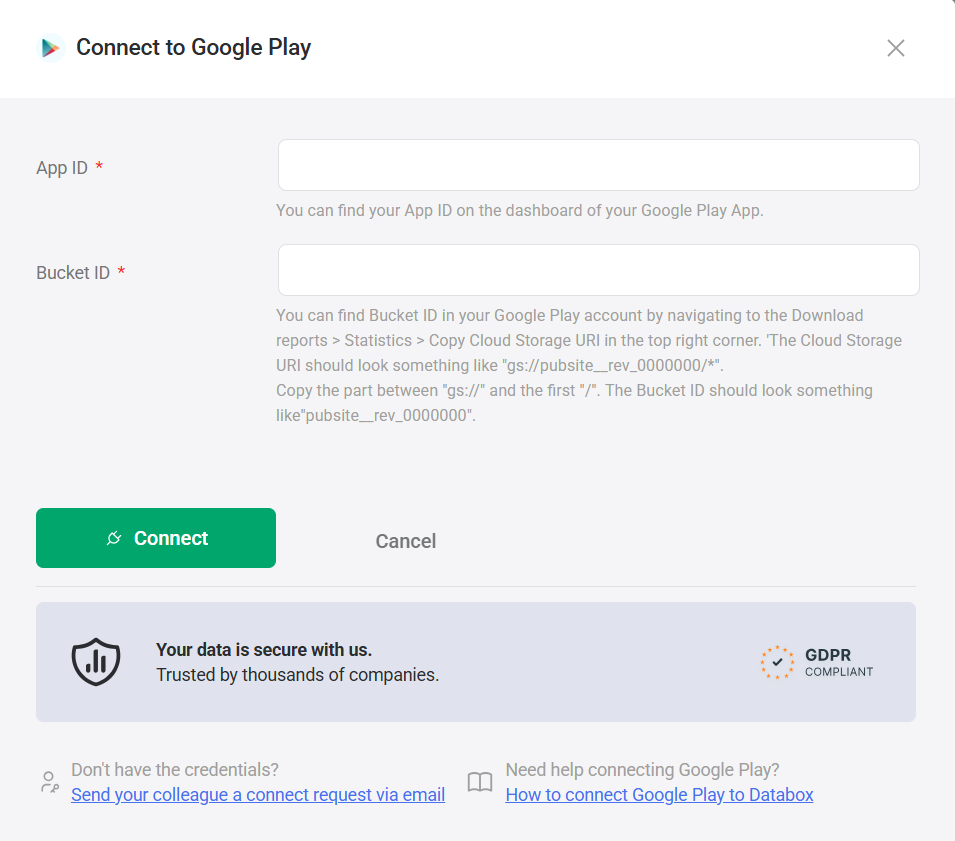
You will be redirected to a Google sign-in page. Sign in with the Google account that has access to your Google Play Console reports and grant Databox the requested permissions.
Google Play Console does not expose app performance data through a conventional REST API. Instead, Google automatically deposits daily report exports — covering statistics, reviews, financial summaries, and more — into a Google Cloud Storage (GCS) bucket tied to your publisher account.
Databox retrieves those reports by querying the Google Cloud Storage API at https://storage.googleapis.com/storage/v1/b/{bucketId}/ using the OAuth 2.0 token obtained during setup. This is why both the API ID and Bucket ID are required when connecting your Google Play account.
Because Google writes these reports on a fixed schedule rather than on demand, Google Play data in Databox syncs once per day and always reflects data from two days prior.
For comprehensive details on metrics, data availability, templates, specifications, usage guidelines, and other key information, refer to the resources listed below.


FAQ
Why does my Google account have access to Play Console but the connection still fails?
Databox needs access to the Google Cloud Storage bucket where Play Console deposits reports, not just to Play Console itself. Confirm that the Google account used during setup has one of the supported roles and that Cloud Storage reporting is enabled for your publisher account in Google Play Console.


