
Availability
 Users, Editors, and Admins
 All organizations and accounts
 One or more features exclusive to select subscription plans or add-ons
Google Business Profile is Google's free tool for managing how a business appears across Google Search and Google Maps. It lets businesses track how customers find and interact with their listing — including the searches that surface it, the views it receives, and the actions customers take such as calls, direction requests, and website clicks. Connecting Google Business Profile to Databox brings your local presence data alongside metrics from your marketing, sales, and support tools, so you can monitor location performance, measure the impact of profile updates, and share insights with your team in a single view.
If your credentials don't include full access to the data source, make sure your access level meets any permission requirements listed in the Specification section of the integration's page in the Metric Library.
To connect Google Business Profile to your Databox account for the first time, sign in with the Google account that has Owner or Manager access to the location you want to report on.
If you've already established a connection, you can reuse it to add new locations, as long as those locations are accessible with the existing connection's credentials.
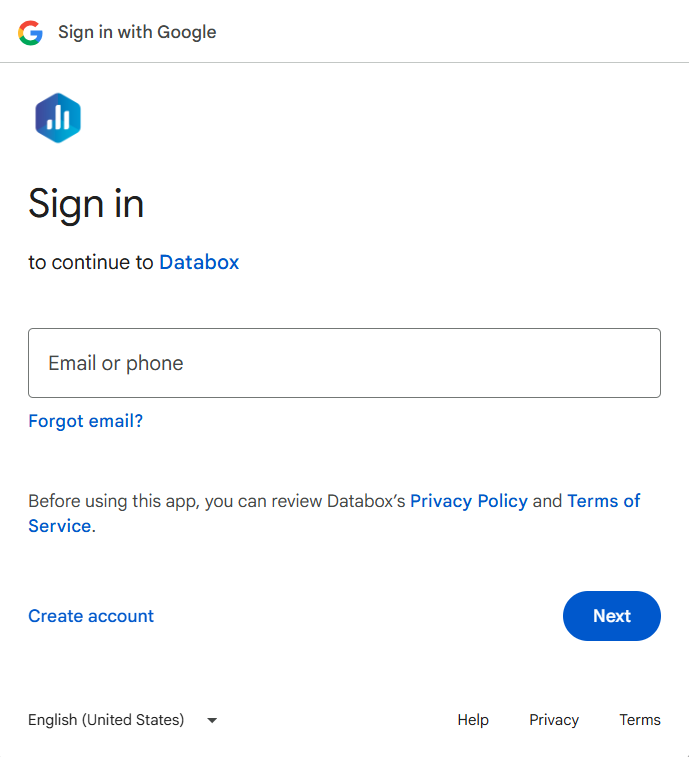
Select the Google Business Profile account you want to connect.
Select the location you want to report on.

The Google Business Profile integration supports the creation of datasets, which allow you to structure and format your Google Business Profile data for more flexible reporting in Databox. By organizing your data into a tabular format, datasets make it easier to filter, segment, and visualize key metrics across projects, clients, and team members.
The entity relationship diagram (ERD) below illustrates how data is organized within the Google Business Profile integration, displaying the available views and columns, as well as the relationships between them (primary and foreign keys). This diagram represents the schema, or structure, of the data and helps you understand the underlying data model. With this context, you can create datasets using the relevant views and columns to build custom metrics tailored to your reporting needs.
For comprehensive details on metrics, data availability, templates, specifications, usage guidelines, and other key information, refer to the resources listed below.


FAQ
Why might data in Databox look different from what I see in Google Business Profile?
A few factors can cause discrepancies. Google Business Profile data is not available for today or yesterday via the API, so those periods will be excluded from Databox date ranges. Google also suppresses search keyword data with fewer than 15 impressions, which appears as blank in Databox rather than the "<15" placeholder shown in the Google Business Profile UI. Finally, Google occasionally delays data updates in its API, which can cause a temporary drop in recent data that resolves on its own.


