


Google Search Console is a free service from Google that helps website owners monitor and optimize their site's presence in Google Search results. It provides data on search traffic, indexing status, and technical issues — giving marketers and SEO teams visibility into how Google discovers and ranks their content. Connecting Google Search Console to Databox brings your search performance metrics — clicks, impressions, CTR, and average position — into unified dashboards alongside your other marketing data, enabling you to report on organic search impact and act on it faster.
If your credentials don't include full access to the data source, make sure your access level meets any permission requirements listed in the Specification section of the integration's page in the Metric Library.
To connect Google Search Console to your Databox account for the first time:
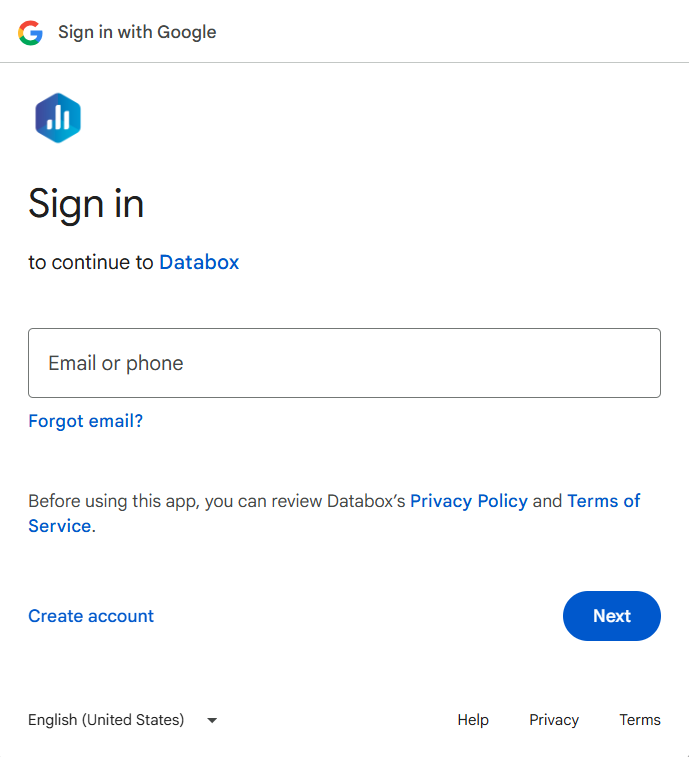
- Click Connect to open the Google sign-in dialog.
- Sign in with the Google account that has access to your Search Console site.
- Review the permissions Databox is requesting and click Allow.
If you've already established a connection, you can reuse it to add new sites, as long as those sites are accessible with the existing connection's credentials.
Select the site or property you want to use as the data source.
The Google Search Console integration allows you to create custom metrics using the metric builder, ideal for visualizing data not included in the basic metrics offered by the integration.
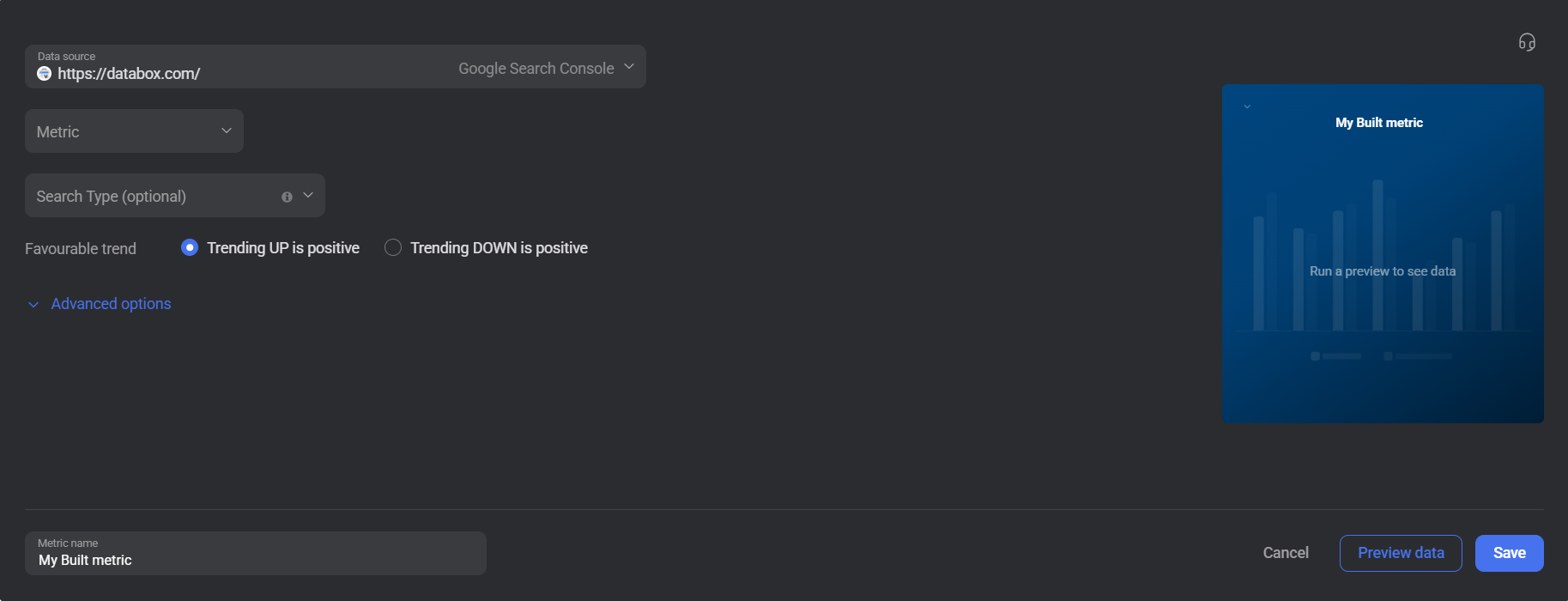
To create a custom metric, start by selecting a metric from the Metric selector. Available metrics include Clicks, Impressions, CTR, Average Position, Number of Queries on Position, and Number of Queries on Position Group. Next, optionally select a Search Type to limit data to a specific search surface (such as Web search results, Image search results, or Google News). Optionally, add a Dimension to break results down by Country, Device, Page, Query, or Search Appearance. Expand Advanced options to add one or more Filter by conditions — you can filter by Country, Device, Page, Query, or Search Appearance to narrow the data included in the metric.
 In Google Search Console: Go to Performance > Search results to explore the queries, pages, countries, devices, and search appearance data available for your property. For more detail, refer to the Search Console Performance report documentation.
For comprehensive details on metrics, data availability, templates, specifications, usage guidelines, and other key information, refer to the resources listed below.


FAQ
What does the Search Type filter control in the metric builder?
The Search Type field restricts the data returned to a specific search surface. For example, selecting Image search results limits the metric to impressions and clicks that came from Google Images, while Web search results (All tab) covers standard web search. If no Search Type is selected, data defaults to web search results.


