Availability
 Users, Editors, and Admins
 All organizations and accounts
 One or more features exclusive to select subscription plans or add-ons
The analysis you run every Monday has a shape to it: the same sources, the same comparisons, the same way you want the output laid out. Spelling all of that out again in each new chat is slow, and small wording differences produce answers that don't line up week to week.
A skill saves those instructions once. You give it a name, describe what Genie should do, and from then on you trigger it with a slash command — /weekly-performance-report — in any chat or routine. Skills work the same way as the skills used by AI clients like Claude: a plain-text set of instructions the assistant follows, which means a skill written for Databox data runs both inside Genie and in external tools connected through Databox MCP.
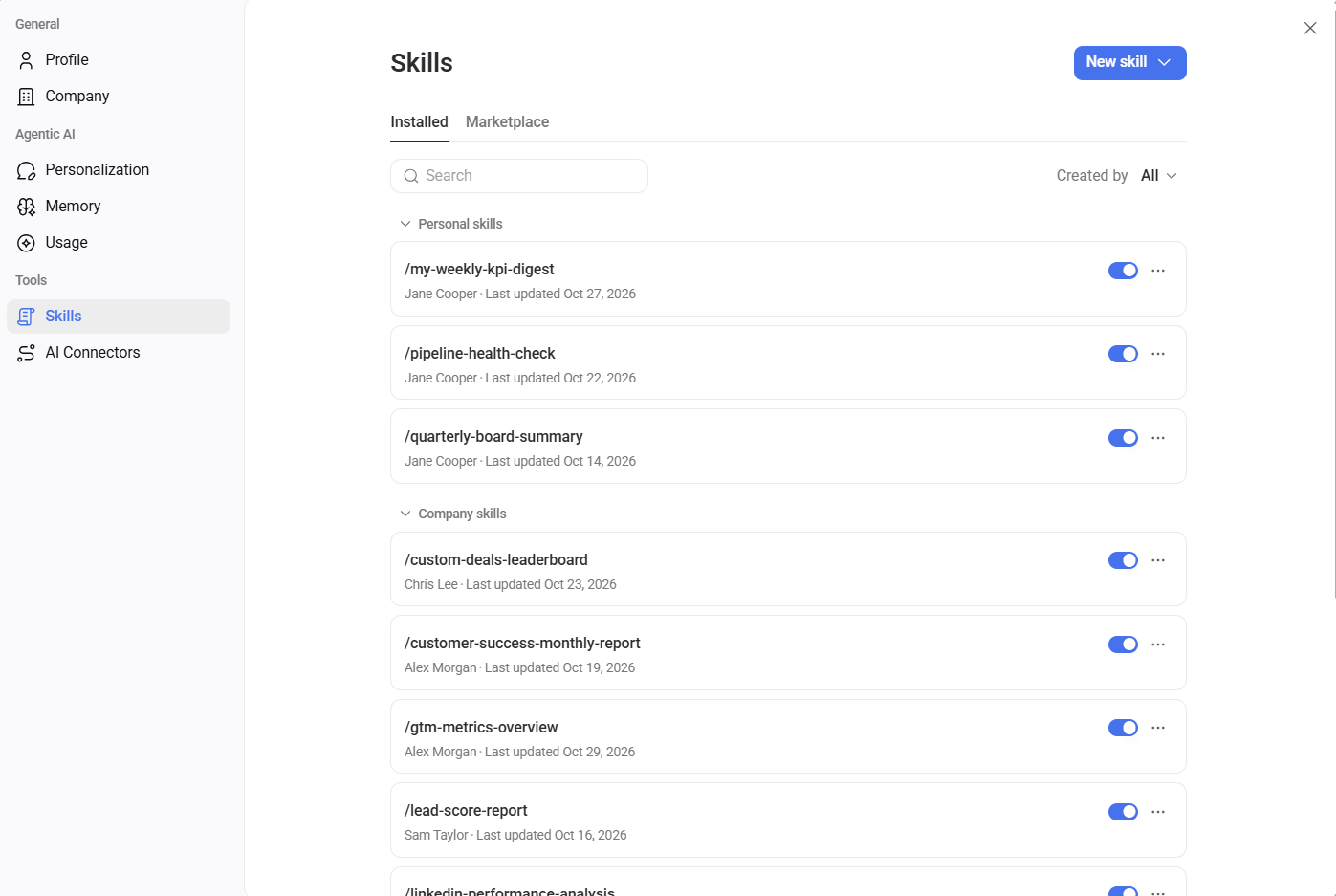
Go to Agentic analytics > Skills. The Installed tab lists every skill available to you, split into two groups:
- Personal skills — skills you created or installed for yourself. Only you can use them.
- Company skills — skills shared across your organization, available to everyone who can chat with Genie.
Each card shows the skill's slash command, who created it, and when it was last updated. Use the toggle to turn a skill on or off. A skill that's toggled off stays in the list but won't appear when you type / in a chat.
Use the Search field to find a skill by name, or the Created by dropdown to narrow the list to a specific person.
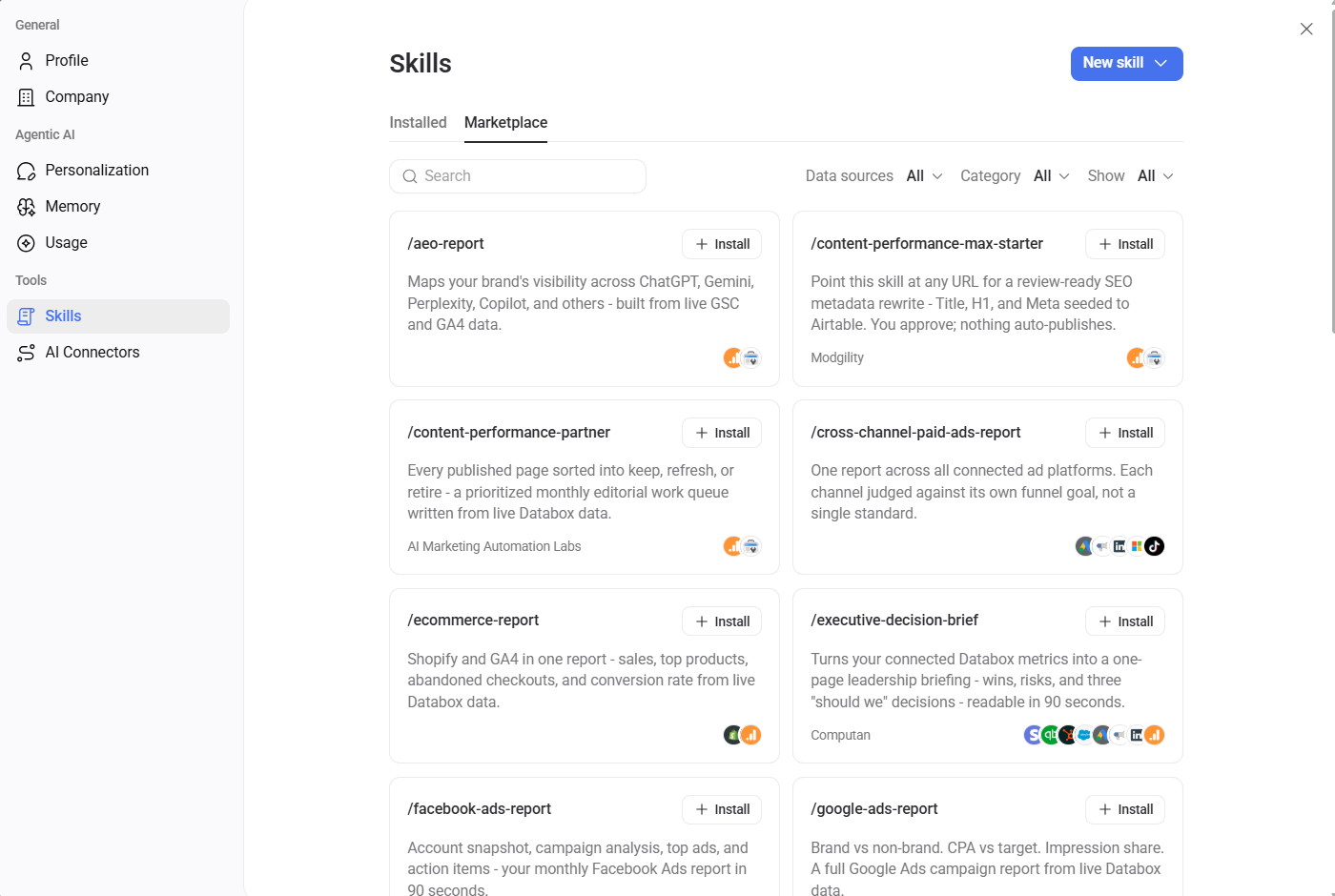
The Marketplace tab is a free library of ready-made skills built by Databox and its partners, covering reporting, analysis, anomaly detection, and monitoring across sources like Google Ads, GA4, HubSpot, Shopify, and LinkedIn.
- Go to Agentic analytics > Skills and open the Marketplace tab.
- Narrow the list using Search, or the Data sources, Category, and Show dropdowns.
- Review a card's description and the data source icons in its corner to see what the skill reads from.
- Click Install.
The skill moves to your Installed tab and is ready to trigger with its slash command.

Marketplace skills cover the jobs most teams share. Anything specific to your business — your naming conventions, your comparison periods, the way your team wants a summary laid out — is worth saving as your own skill.
Click the New skill drop-down on the Skills page and choose one of three ways to build it:
- Create with Genie — Describe the outcome and answer Genie's questions. Best when you know what you need but not how to word it.
- Write skill — Fill in the name, description, and instructions yourself. Best when you already have the wording in mind.
- Upload skill — Bring in an existing
.mdfile, such as one written in another AI client.
Whichever route you take, the result is the same: a named set of instructions with its own slash command, saved to your Installed tab.
Choose this when you know the outcome you want but not how to phrase the instructions.
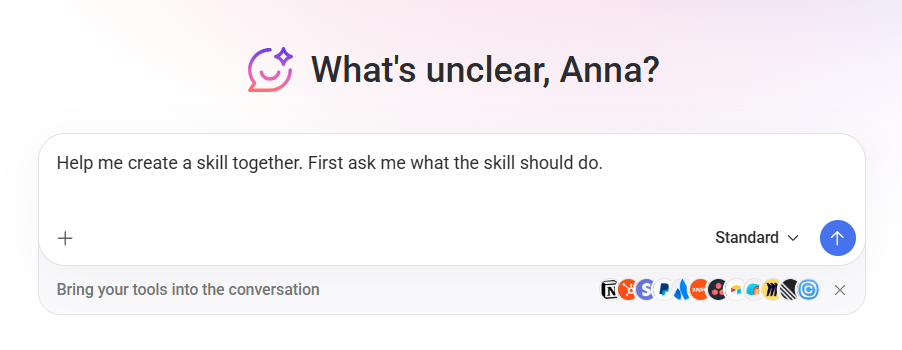
- Click New skill and select Create with Genie.
- Genie opens a chat and asks what the skill should do.
- Describe the task in plain language, and answer Genie's follow-up questions about which metrics to pull, what date range to use, and how to format the result.
- Confirm the skill Genie drafts to save it.
Choose this when you already know exactly what you want Genie to do.
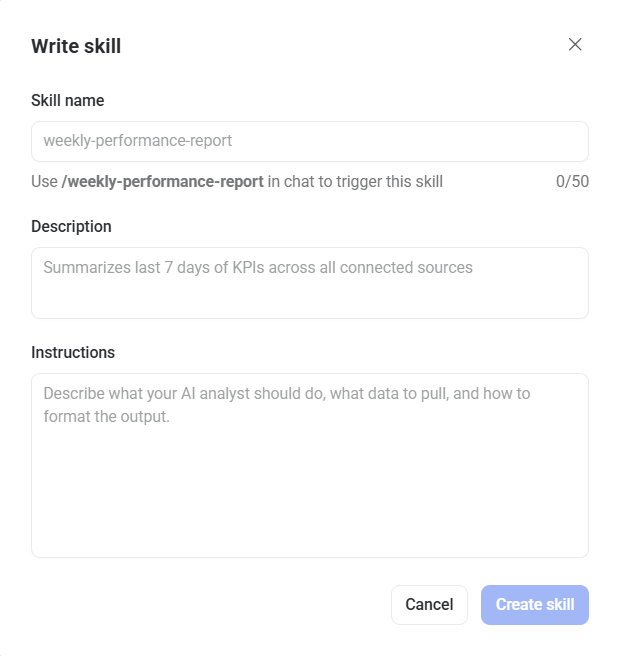
- Click New skill and select Write skill.
- Enter a Skill name of up to 50 characters. The name becomes the slash command, so
weekly-performance-reportis triggered with /weekly-performance-report. - Enter a Description summarizing what the skill does, such as "Summarizes last 7 days of KPIs across all connected sources."
- Enter the Instructions: what the skill should do, what data to pull, and how to format the output.
- Click Create skill.
The more specific the instructions, the more consistent the output. Name the data sources and metrics explicitly, state the date range or comparison period, and describe the structure you want back — a table, a short summary, a ranked list.
Choose this when you already have a skill file, such as one downloaded from the skills marketplace or written for another AI client.
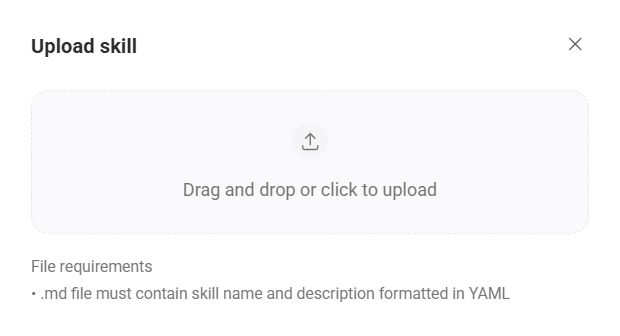
- Click New skill and select Upload skill.
- Drag a
.mdfile into the upload area, or click the area to browse for the file.
The file must contain the skill's name and description as YAML frontmatter, with the instructions in the body below it — the same format AI clients like Claude use, so a skill written for one works in the other.
Click the three dots ( ) on a skill card for the rest of the actions:
- Try in chat — Opens a chat with the skill already triggered, so you can see what it returns.
- Edit — Opens the skill's name, description, and instructions for editing.
- Edit with Genie — Describes the change you want in a chat and lets Genie rewrite the instructions for you.
- Replace — Swaps the skill's contents for a new
.mdfile, keeping the skill and its slash command in place. - Download — Saves the skill as a
.mdfile you can back up, share with a teammate, or load into another AI client. - Remove from company skills — Takes a shared skill out of Company skills, so it's no longer available to everyone in your organization.
- Delete — Removes the skill permanently.
- Open any chat with Genie, or create a routine.
- Type / in the input to list the skills available to you.
- Select a skill, or keep typing its name to filter the list.
- Add any extra detail for this run — a date range, a specific data source, an account — and send the prompt.
Genie follows the skill's saved instructions and answers in the format the skill defines. Because the skill is only the starting point, you can keep asking follow-up questions in the same conversation without changing the skill itself.
FAQ
Can I run a Databox skill outside Databox?
Yes. Skills from the skills marketplace are plain files you can also load into an AI client like Claude and point at your account through Databox MCP. The skill reads the same live metrics either way.
Do skills use AI credits?
Yes. Running a skill consumes AI credits from your account's shared pool, the same as any other Genie request. See Understanding AI credits for your plan's allowance.
What's the difference between a skill and a routine?
A skill is a saved set of instructions you trigger yourself with a slash command. A routine is a schedule or webhook that runs a task automatically and delivers the result. A routine's instructions can reference a skill, so the two work together.


