Availability
 Users, Editors, and Admins
 All organizations and accounts
 Exclusive to select subscription plans
Asking the same question every morning, or re-running a report every Monday for the team, gets repetitive fast. Routines let you turn any AI task into a recurring or event-triggered job, so it runs automatically on a schedule you set, or the moment another app signals it, and delivers the results without you having to ask again.
Each routine keeps a full history of its past runs, and you can have results delivered straight to your inbox or a Slack channel, so the people who need the update get it without opening Databox.
Navigate to Agentic analytics > Routines to view your routines.
This page lists both active and inactive routines as cards showing the routine's name, its instructions, an on/off toggle, and its next scheduled run or trigger type.
Any card with new results since you last checked it shows a count badge, such as 5 new, so you can quickly spot which routines have fresh output waiting.
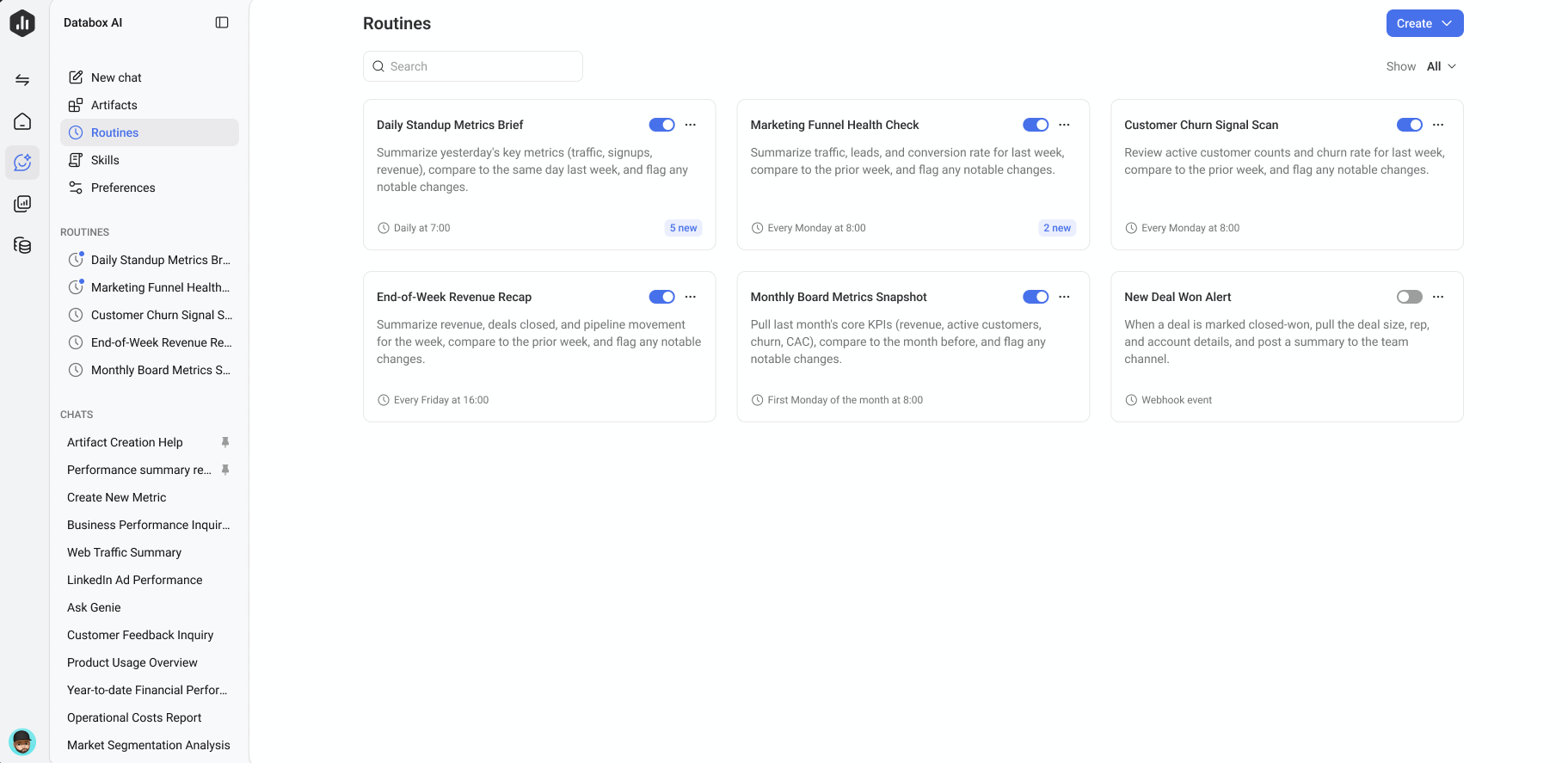
Your routines also appear as a list in the Genie sidebar, above your chats, showing up to 7 at a time with a Show all link if you have more. Pausing a routine removes it from this sidebar list, but it stays visible on the Routines page.
You can start a routine from the Routines page using the steps below, from an existing chat (see Create a routine from a chat), or by turning an existing artifact into one (see Turn an artifact into a routine).
- Go to Agentic analytics > Routines.
- Click Create.
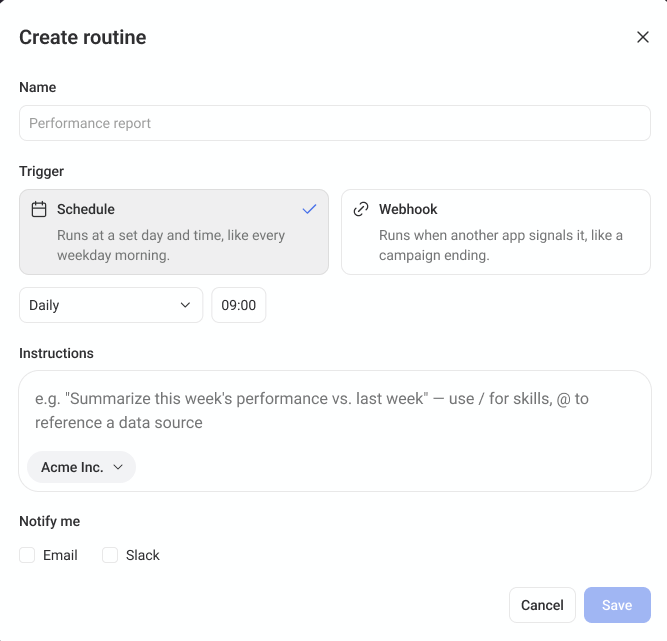
- Enter a Name for the routine.
- Choose a Trigger:
- Schedule — Runs automatically at a set day and time.
- Webhook — Runs when another app sends a signal, such as a campaign ending.
- Configure the trigger details (see below for each option).
- Enter your Instructions, describing what the routine should do each time it runs. Type / to reference a skill, or @ to reference a specific data source or company. If your organization has accounts, an account selector also appears here so you can scope the routine to a specific account.
- Under Notify me, choose whether to receive the results by Email, Slack, or both. Both are off by default — if you leave them off, you'll still see new runs marked in the app.
- Click Save.
Notification subject lines are written by Genie based on each run's outcome, for example "Business is stable" versus "You'll want to check sessions," so you can triage from the subject line alone. Slack notifications include the summary text only, with no links back to Databox; email notifications may include links.
When you choose Schedule, select how often the routine should run. By default, a new routine is set to Daily at 09:00 until you change it:
- Daily — Runs every day at the time you set.
- Weekdays — Runs Monday through Friday at the time you set.
- Weekly — Runs on a specific day of the week (for example, every Monday) at the time you set.
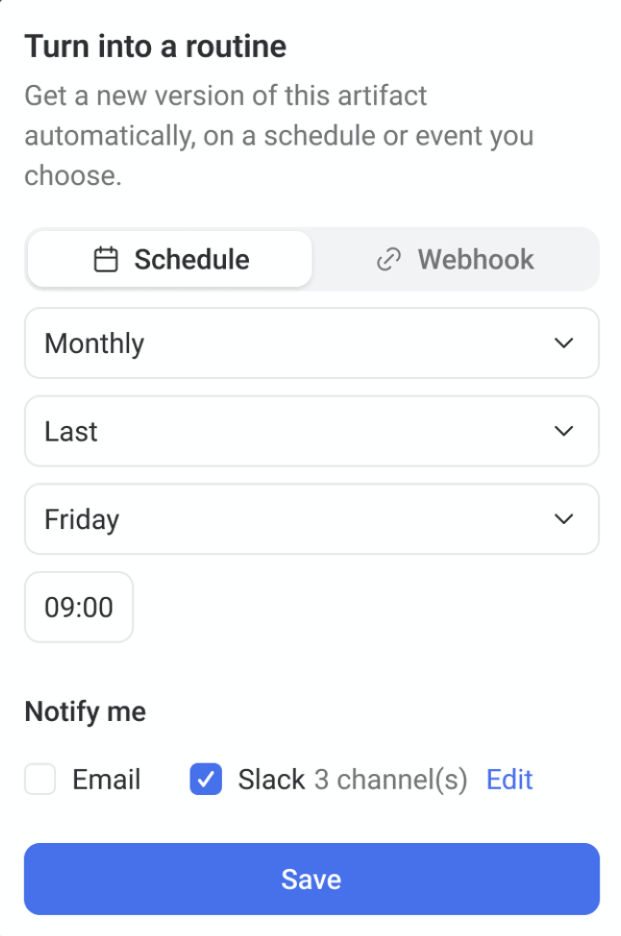
- Monthly — Runs on a specific occurrence and day of the month (for example, the first Monday, or the last Friday) at the time you set.
Set the time using the time picker next to the frequency dropdown. The routine runs in your profile time zone.
When you choose Webhook, Databox generates a unique webhook URL for the routine instead of a schedule.
Copy the generated URL and paste it into the webhook settings of the app you want to trigger the routine, such as an automation platform or a tool that fires an event when a campaign ends.
The routine runs automatically whenever Databox receives a request at that URL. The URL itself is the routine's credential — anyone who has it can trigger the routine, so rotate it from the routine's settings if it's ever exposed. Databox ignores whatever is sent in the request body, so a webhook call can only start the routine — it can't pass parameters into it.

If Genie has already built an artifact you want refreshed automatically, such as a report or chart, you can turn it directly into a routine instead of creating one from scratch.
- Open the artifact in Genie.
- Click
 in the artifact toolbar.
 - Choose a Schedule or Webhook trigger and configure it as described above.
- Choose your notification preferences and click Save.
Each time the routine runs, it generates a new document using the same instructions — not a new version of the original artifact. The artifact's gallery card holds a stack of these documents, newest on top, and is labeled with the newest document's title, so the card's name can change from run to run. Renaming a document doesn't carry forward to the next run.
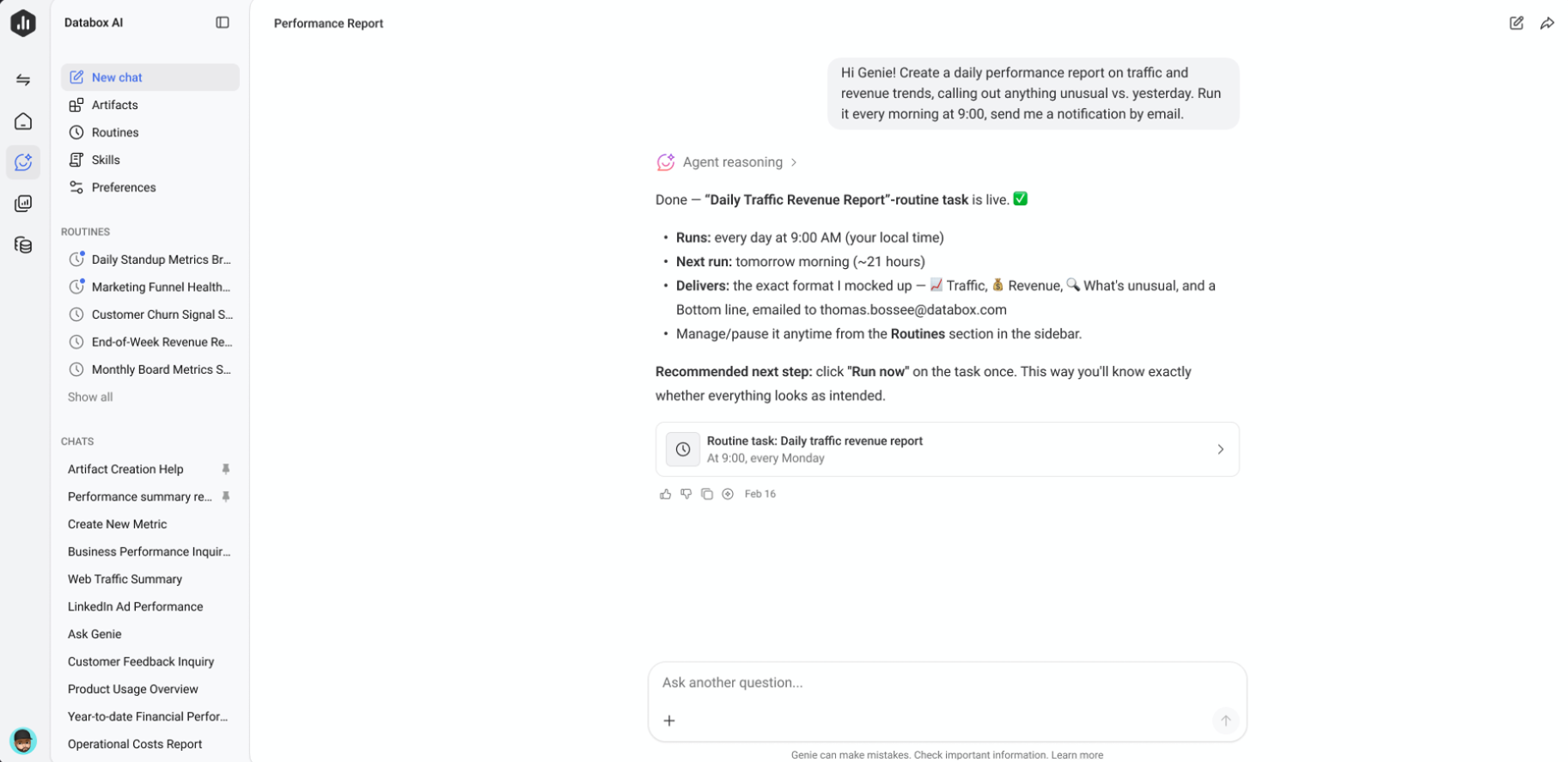
Genie can also set up a routine for you directly from an existing conversation, using that chat's context — you don't need to visit the Routines page at all.
- Open any chat with Genie.
- Type /schedule, or just ask in natural language, for example "run this every Monday at 9am."
- Genie asks follow-up questions for anything it still needs — trigger, frequency, time, timezone, instructions, or notifications.
- Confirm the details Genie proposes to save the routine.
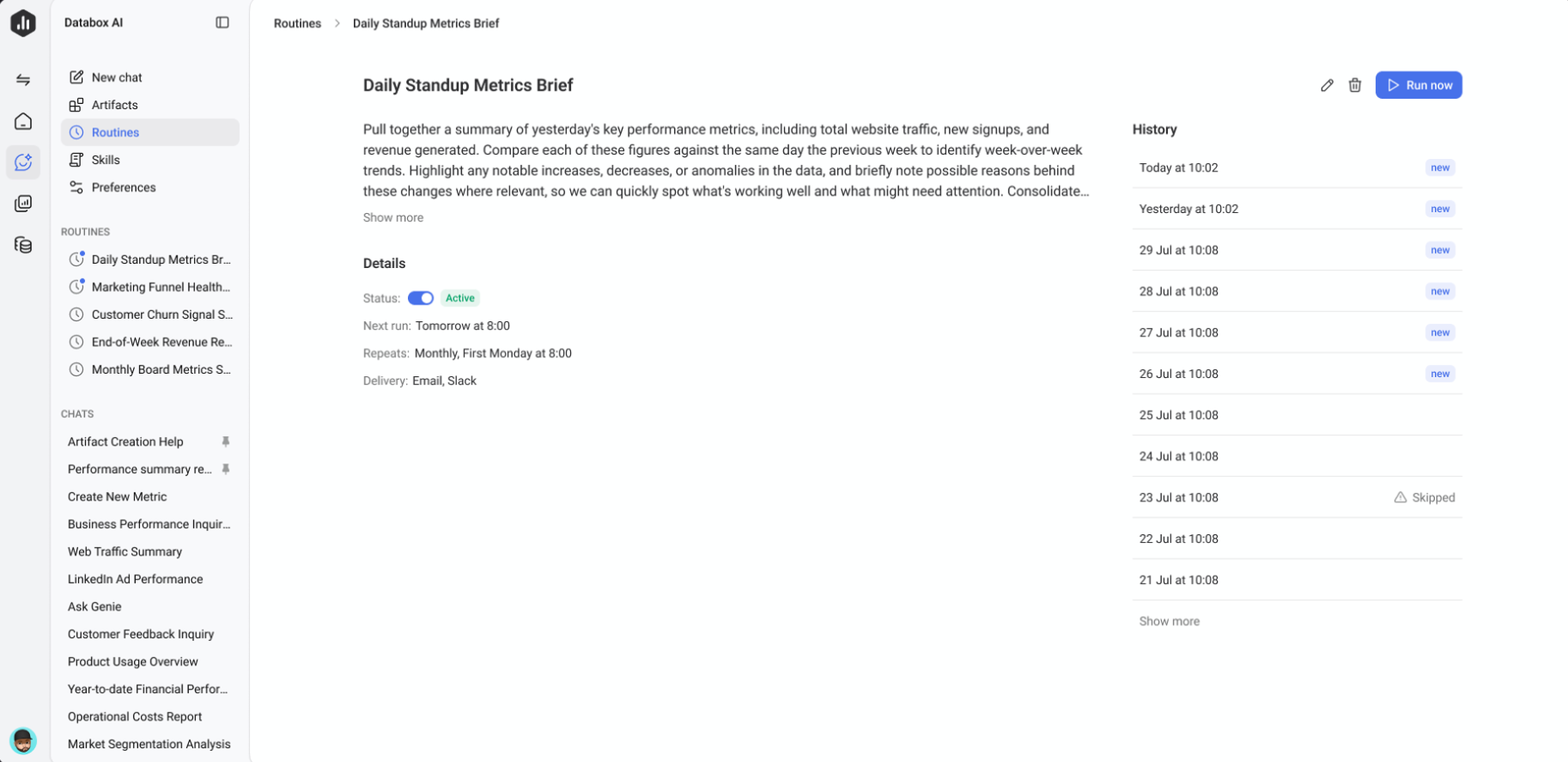
Click a routine in the Routines list to open its detail page. The Details panel shows its status, next run, repeat schedule, and delivery destination. From here, you can also run it on demand with Run now, edit it, duplicate it, pause or resume it with the toggle, or delete it.
Running a routine with Run now doesn't send a notification and doesn't change its next scheduled run.
Deleting a routine removes its run history, but keeps any artifacts it created — the confirmation message reminds you of both before you delete.
The History list on the detail page shows every past run, newest first, with its timestamp. Runs you haven't reviewed yet are marked new. If a run can't complete, for example because of a temporary data issue, it shows as Skipped along with the reason. Click Show more to load older runs.
Each run gets its own conversation under its routine, opening with the routine's instructions as the first message and Genie's answer below it. You can keep asking questions from any run — up to about 24 follow-ups — but they never change the routine itself; every run starts fresh from the saved instructions.
Run conversations only live under their routine — they don't appear in your regular Chats list. You can share a run's conversation the same way you'd share any other Genie chat.
FAQ
Do routine runs use AI credits?
Yes. Each routine run consumes AI credits from your account's shared pool, the same as chatting with Genie directly. See Understanding AI credits for details on your plan's allowance. If your account runs out of credits, a scheduled run shows as Skipped with the reason displayed — the routine itself is never paused or deactivated, and its runs resume automatically once credits are available again.
Does a paused routine respond to incoming webhook triggers?
No. While a routine is toggled off, any webhook calls it receives are ignored. Reactivate the routine to have it respond to new triggers again.
What happens to a routine's webhook URL if I edit the routine?
Switching a routine from a webhook trigger to a schedule trigger deactivates the webhook URL. If you switch back to a webhook trigger later, Databox generates a new URL, so you'll need to update it in the app that calls it.
Who can see a routine's results?
Routine history and delivered notifications are only visible to the user who created the routine, and to any Slack channel or email address it's configured to notify.


