Availability
 Users, Editors, and Admins
 All organizations and accounts
 Exclusive to select subscription plans
Distributing reports manually — exporting, attaching, and emailing them to the right people at the right time — is easy to forget and time-consuming to maintain consistently. Report notifications replace that process entirely. You can schedule a report to be exported and delivered automatically to any recipient, inside or outside your Databox account, on whatever cadence makes sense for your team. If you are personally responsible for reviewing a report before a meeting or deadline, a reminder will prompt you on schedule so nothing slips through the cracks.
- Click your name in the bottom-left corner and select Notifications, or navigate to Settings > Notifications.
- Click + New notification.
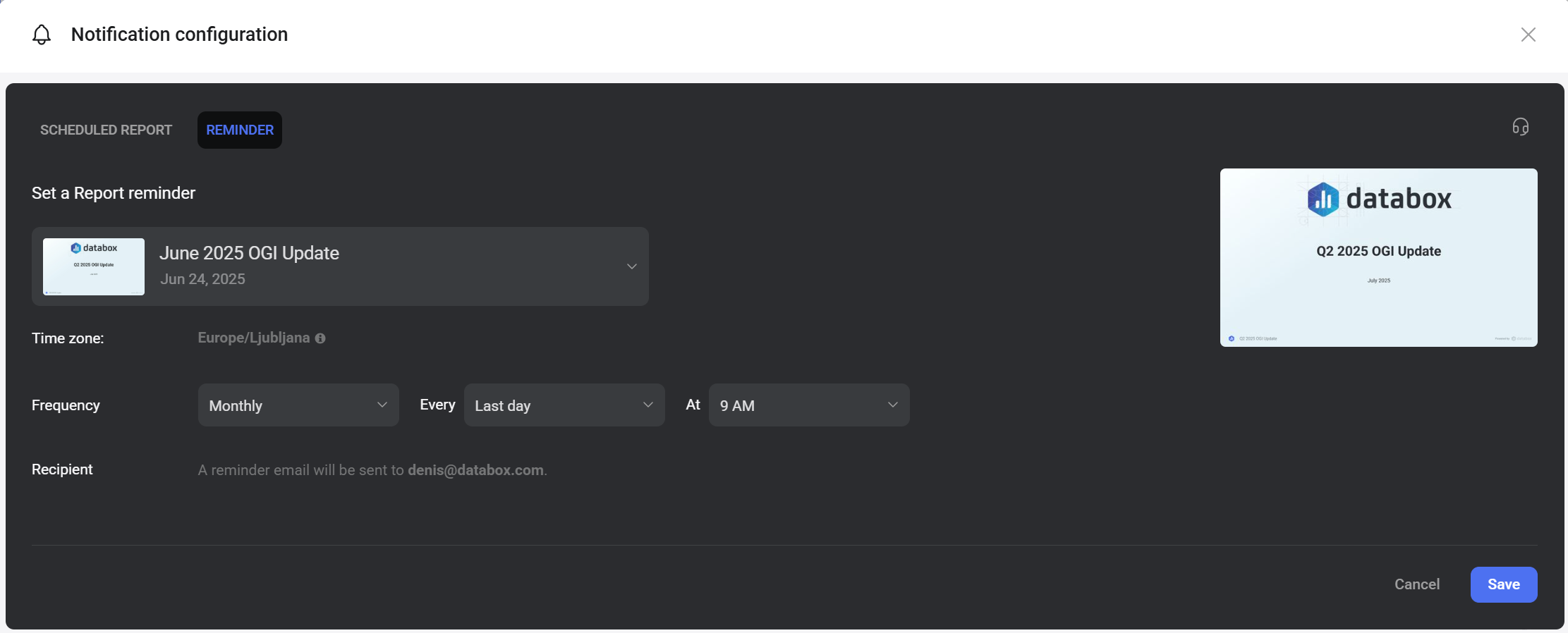
- Select Report.
- Search for or select the report you want to notify about.
- Choose a notification type — scheduled report or reminder — and configure the settings described below.
- Click Save.

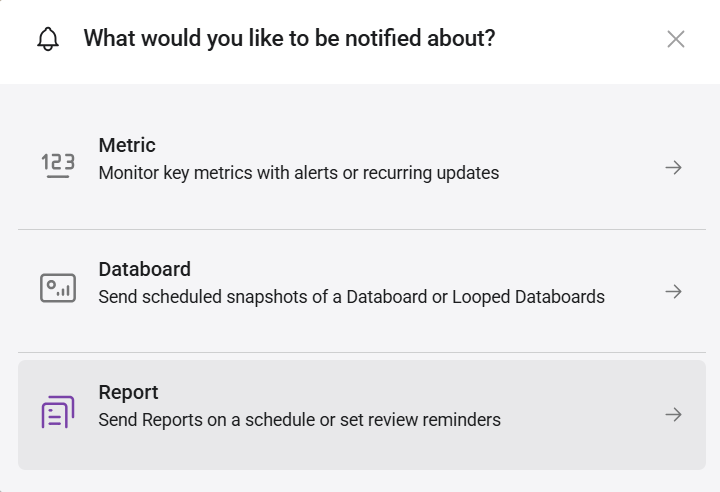
A scheduled report exports the selected report and sends it to recipients on a recurring schedule.
- Report: The report selected in the previous step. Click the dropdown to change the selection.
- Export format:
- Page — exports the report as a pageless document.
- Slides — exports the report in a slides format.
- Time zone: The time zone used for scheduling and data display. This reflects your profile time zone.
- Include: Background images in exported document — includes any background images from the report in the exported file. This option may be unavailable depending on the export format selected.
- Frequency: Choose how often the report is sent. Set the interval, the specific day or date, and the delivery time.
- Delivery method: Select Email, Slack, or both.
- Recipient(s): Enter one or more email addresses. Select existing Databox users from the dropdown or type external email addresses manually. Click + Add after each address to add it.
- Custom subject and description: Expand to personalize the notification:
- Add a custom subject (optional): Customizes the subject line of the email or Slack message.
- Add a personal note (optional): Adds a message body to accompany the exported report.
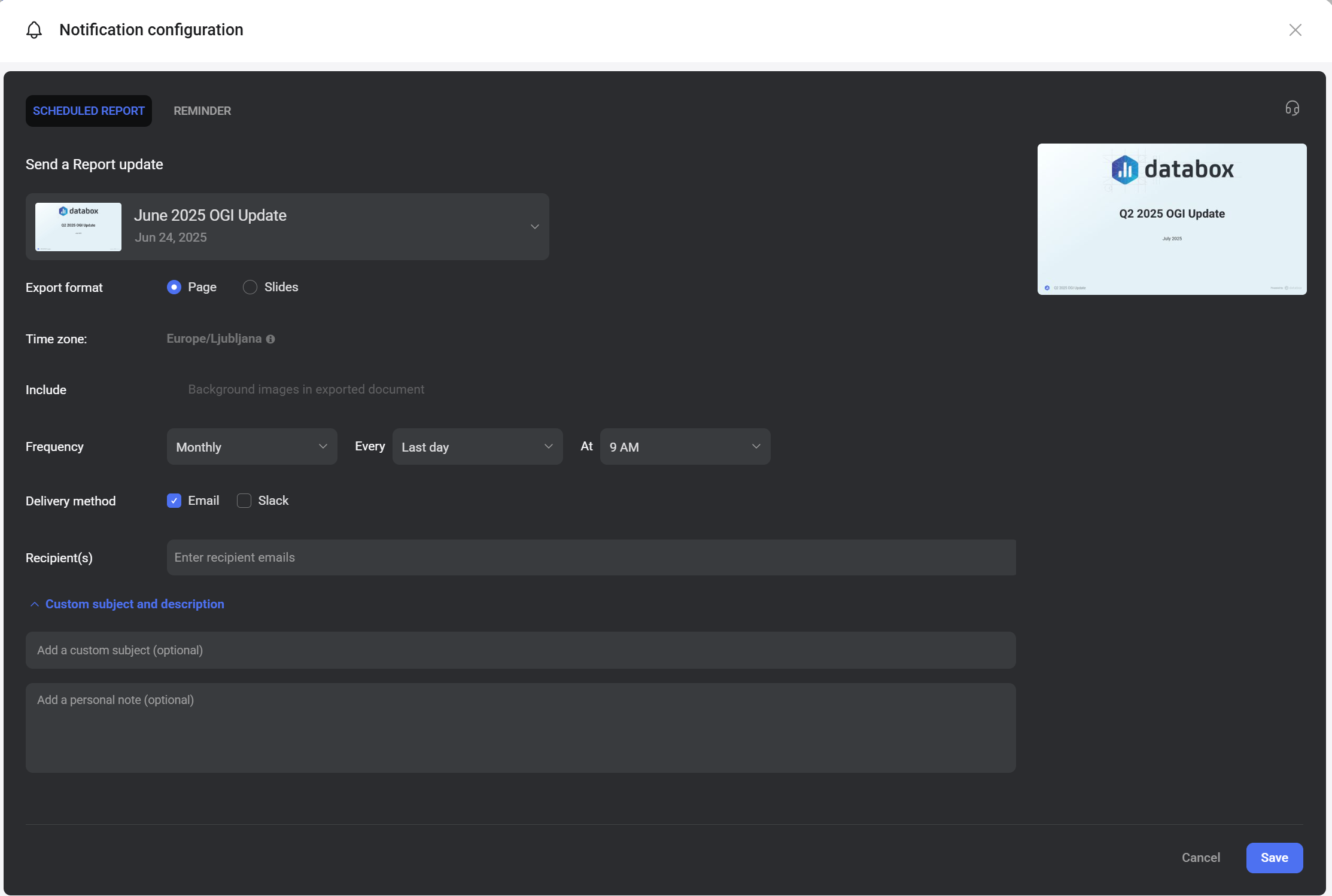
A reminder sends a personal email to prompt you to review the selected report on a recurring schedule. No report export is attached — it is a notification only.
- Report: The report to be reminded about. Click the dropdown to change the selection.
- Time zone: The time zone used for scheduling. This reflects your profile time zone.
- Frequency: Choose how often the reminder is sent. Set the interval, day or date, and time.
- Recipient: The reminder is sent to your account email address. This cannot be changed for reminders.

- Navigate to Settings > Notifications.
- Find the notification in the list and click Edit.
- Make your changes and click Save.
To delete the notification, click the drop-down arrow ( ) and select Delete.
FAQ
Can I set up multiple report notifications for the same report?
Yes. You can create multiple notifications for the same report — for example, a scheduled report for your team and a separate reminder for yourself.
What is the difference between a scheduled report and a reminder?
A scheduled report exports the report and delivers it to one or more recipients on a recurring schedule. A reminder is a personal notification sent only to your own email address prompting you to review the report — no export is attached.


