


When you've built a dashboard that works well for one account, copying it to another saves you from starting from scratch. This is useful for onboarding new accounts quickly, sharing a polished reporting layout as a starting point, or giving an account ownership of its own version that it can customize independently — without affecting your original.

- Navigate to Dashboards.
- Switch to the account you want to copy from, if needed, using the account switcher in the top-left navigation.
- Hover over the dashboard and click the three dots (
 ).
). - Select Copy to account.
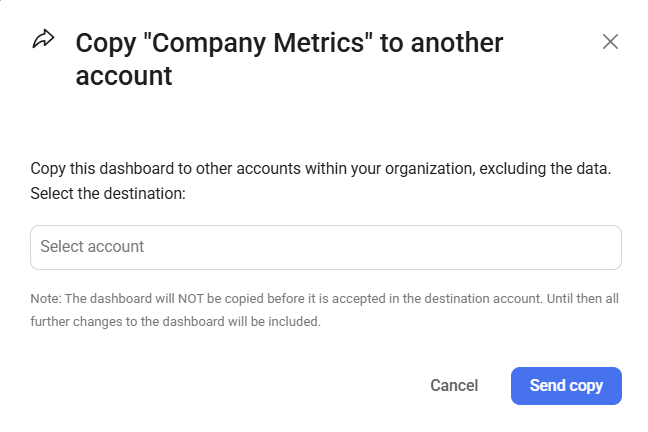
- In the dialog, select the destination from the Select account dropdown, or enter the destination's Account ID directly.
- Click Send copy.
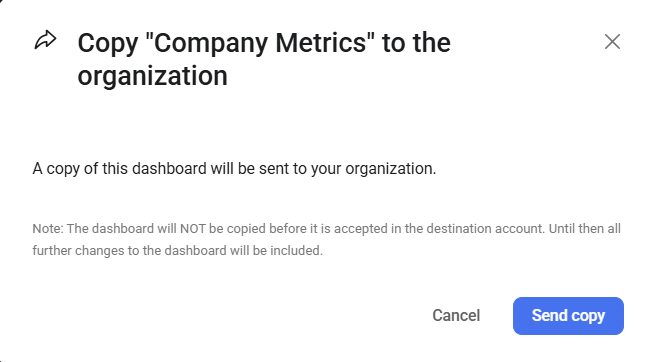
When copying from an account back to your organization, select Copy to organization from the three dots menu instead. No destination selection is needed — click Send copy to proceed.

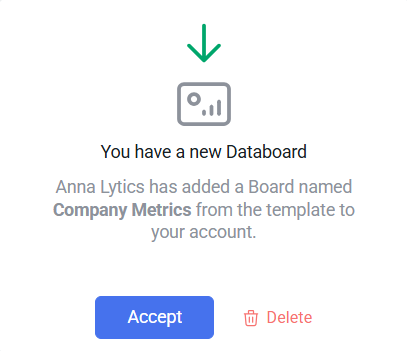
When a copy is sent to an account, a notification appears on the Dashboards page in that account.
- Switch to the destination account.
- Navigate to Dashboards. A pending dashboard notification will be shown.
- Click Accept.
- Connect the appropriate data sources from the destination account to populate the dashboard with data.
- Click Accept to complete the process.
FAQ
Can I copy multiple dashboards at once?
Yes. In the list view on the Dashboards page, select multiple dashboards using the checkboxes, then use the Copy to account action to send them all to the same destination in one step.


