Availability
 Users, Editors, and Admins
 All organizations and accounts
 Exclusive to select subscription plans
Genie's answers are only as complete as the data behind them, and by default that's your Databox metrics — what changed, not why. A question like "why did our close rate drop?" needs the deals sitting in your CRM, not just the metric that moved.
MCP connectors close that gap. Using MCP (Model Context Protocol), an open standard for connecting AI assistants to external tools, you can connect Genie to the systems where that context lives — your CRM, support desk, project tools, or Slack — either through an official, pre-built connector or a custom connector to any MCP server you choose. Once connected, Genie can call that tool when it answers a question or runs a routine, governed by permissions you control per tool.
- Go to Agentic analytics > Customize > AI Connectors.
- Under Connected, review the connectors already set up for your account. Click one to open its manage page (see Manage a connected tool).
- Under Available AI Connectors, find an official connector and click Connect.
- Follow the prompts to authenticate with the external tool. Once the connection succeeds, it moves into your Connected list.
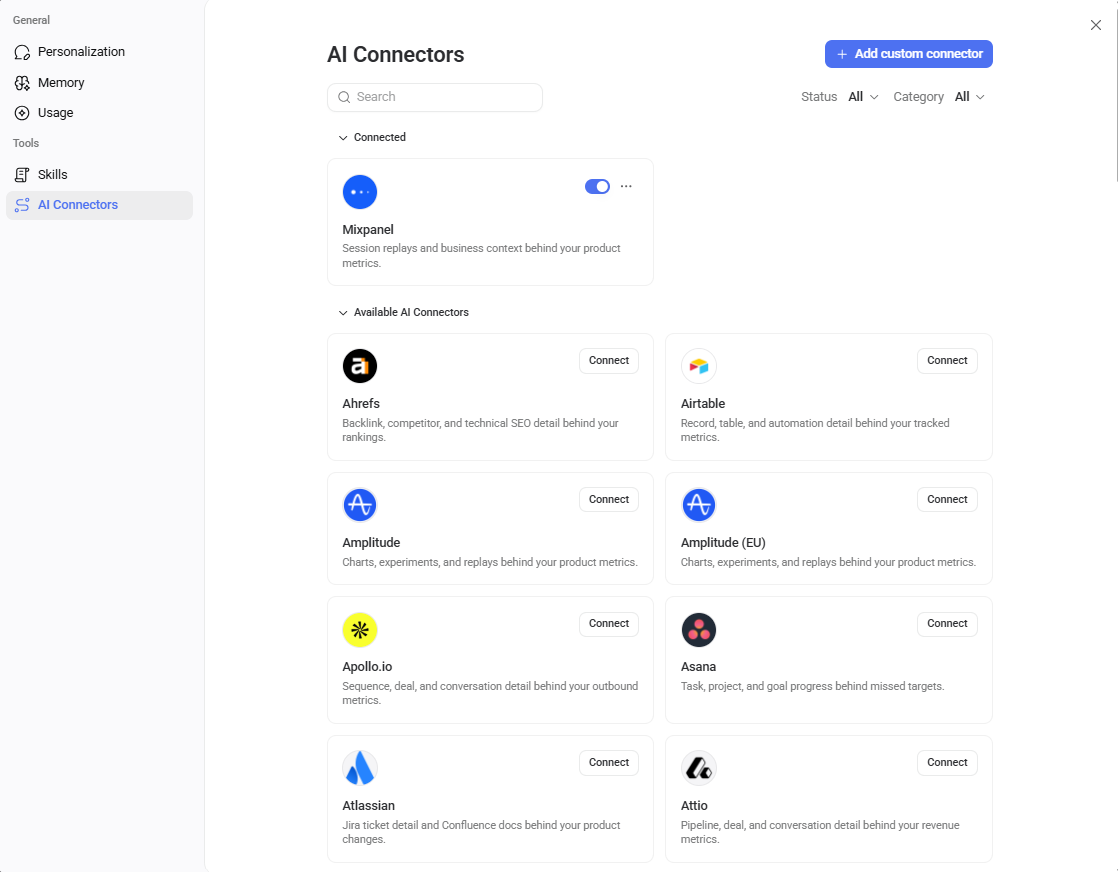
A custom connector connects Genie to any MCP server, not just the officially supported list.
- On the MCP connectors page, click + Add custom.
- In the Custom MCP connector window, enter:
- MCP server — the MCP server's endpoint.
- Name — a name to identify the connector in your Connected list.
- Authentication — the credentials or method the server requires.
- Submit the form. The connector appears in your Connected list once the connection succeeds.
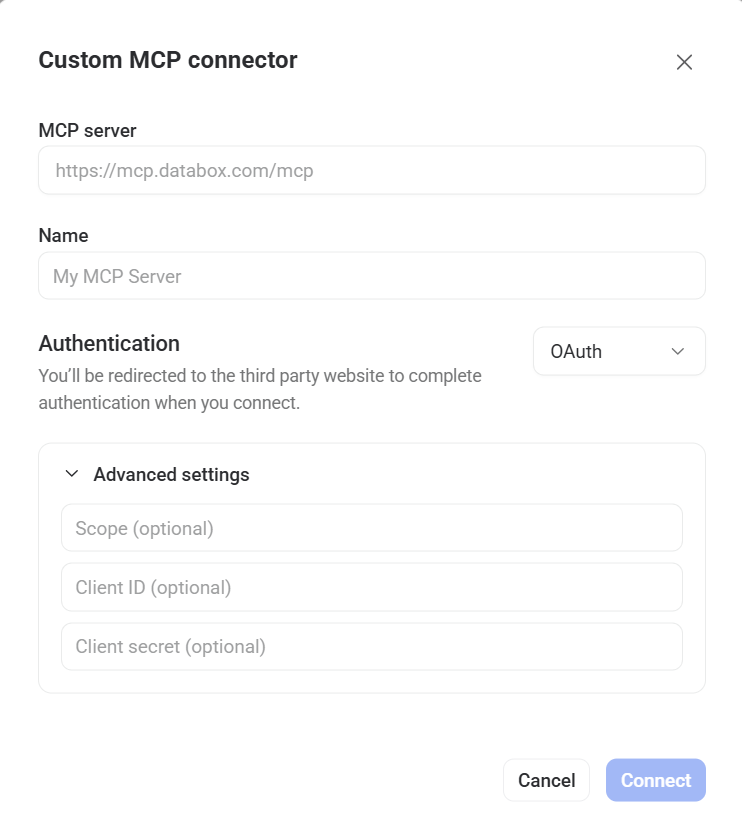
Click a connector in your Connected list to open its manage page.
- Use the toggle next to the connector's name to turn it on or off.
- Click the three dots (
 ) and select Refresh tools to re-sync the list of tools the connector exposes.
 - Click the three dots () and select Disconnect to remove the connector.
- Description — for official connectors only, a short explanation of what the connector does, along with a link to its MCP server address.
- Example prompts and Category — shown for official connectors only, to help you see what kinds of questions the connector supports.
Under Tool permissions, the connector's capabilities are grouped into collapsible Read-only tools and Write tools sections, each showing how many tools it contains. Use the dropdown next to a group to set the default for every tool inside it:
- Always allow (
 ) — Genie runs the tool automatically whenever it's relevant, with no confirmation needed.
 - Needs approval (
 ) — Genie asks you to confirm before it runs the tool.
 - Blocked (
 ) — Genie can't call the tool at all.
Expand a group to see its individual tools and override any of them with the same three options listed above.

FAQ
Can Genie take actions in a connected tool, like updating a deal or closing a ticket?
Yes, if the tool's permission allows it. Set a write tool to Always allow to let Genie run it automatically, Needs approval to confirm with you first, or Blocked to prevent it entirely.
What's the difference between an MCP connector and a Databox integration?
A Databox integration pulls data from a platform into Databox as metrics and datasets. An MCP connector lets Genie call a platform's tools directly — reading data for context or, where a write tool is permitted, making a change in that platform — without importing its data into your account.


