


Databox lets you keep all of your reporting in one organization while using accounts to separate data, users, and reporting for different parts of your business. Each account is a separate environment, making it easier to manage clients, brands, locations, business units, or other entities independently. Organizations can use as many accounts as they need — or none at all.
An organization is the top-level entity in Databox. Every customer has one. It holds your users, settings, and billing, and it controls access and permissions for anything beneath it.
An account is an environment nested under an organization. Each account keeps its own data, dashboards, metrics, goals, and users, fully isolated from every other account. Accounts are how you separate the parts of your business you report on — a client, a location, a brand, or a business unit.
An organization may have accounts beneath it, but it doesn't have to. One that does is a multi-account organization; one that doesn't is a standalone organization. Adding accounts requires the Team Scale or Agency plan — see Choose a subscription plan. The rest of this article covers what changes once you add accounts.
- Independent and secure environments: Each account functions as a separate environment, keeping its data and users isolated from other accounts and helping protect sensitive information.
- Centralized management: Oversee multiple accounts efficiently through a single organization, maintaining full control over configurations while managing each account's individual needs.
- Customized reporting: Build personalized dashboards, metrics, and goals aligned with each account's unique objectives.
- Custom branding: Apply your branding to accounts with the White Label add-on for a professional, seamless experience.
- Scalable workflows: Use templates to replicate dashboards, and slide presentations efficiently across multiple accounts.
- Flexible collaboration: Share access securely with the people in each account, or manage reporting entirely from the organization side.
Access to accounts is managed by the organization at the account level. You can specify which users can access or manage an account during its creation or through subsequent edits.
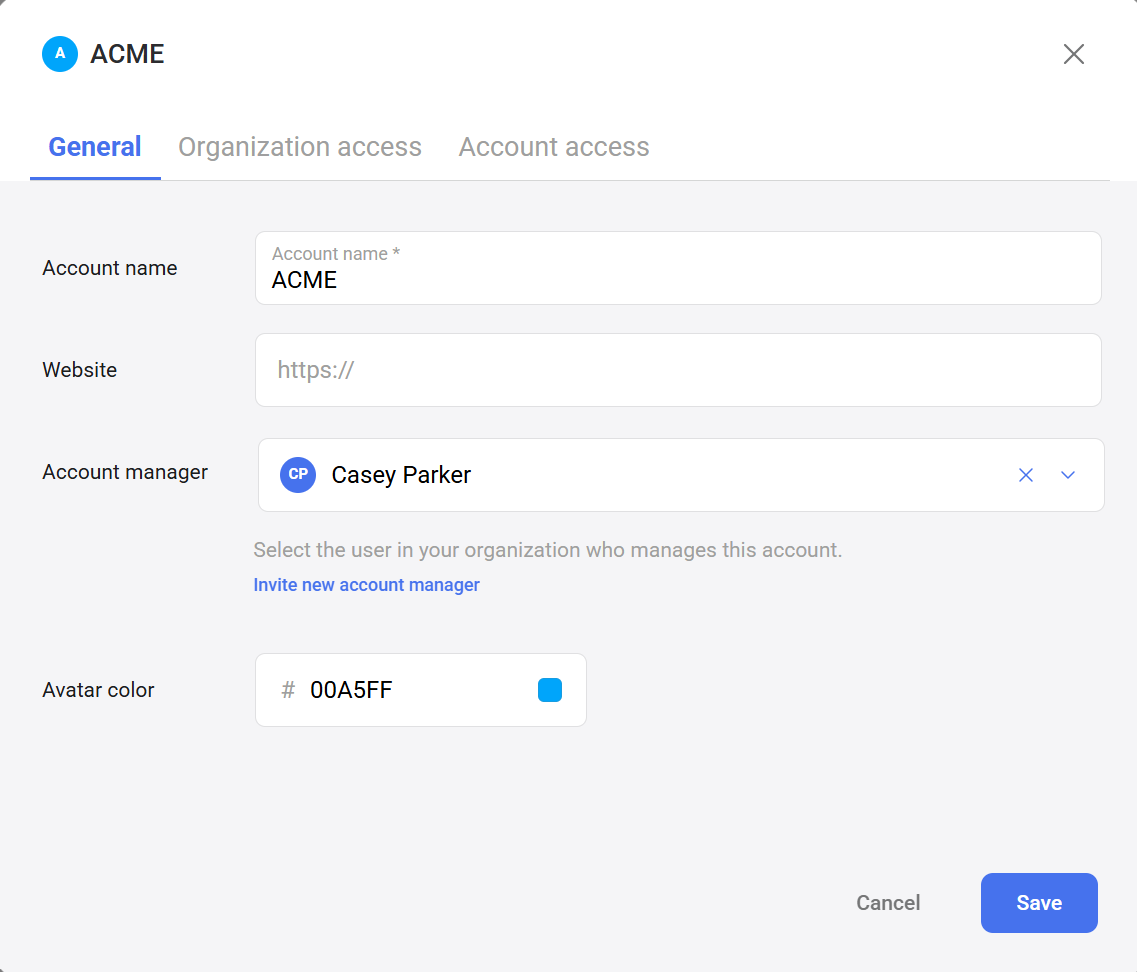
An account manager is an organization user responsible for managing the relationship and performing any necessary setup to enhance that account's reporting process.
Each account must have an account manager assigned at all times. This role is initially set during the account creation process but can be updated later if needed.
To change the account manager for an account:
- Navigate to Account Management > Accounts and locate the desired account.
- Click Edit, then select the General tab.
- Select the organization user to assign as the new account manager from the dropdown menu.
- Click Save to confirm the changes.
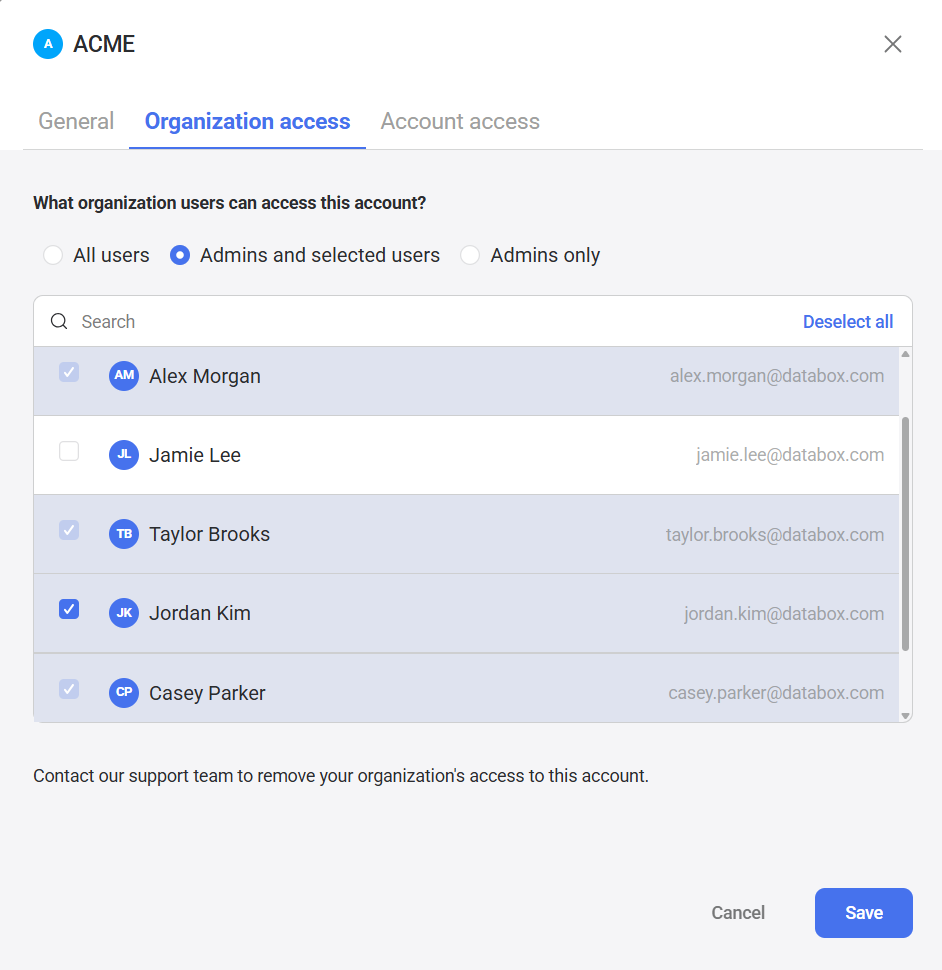
To manage organization user access to an account:
- Navigate to Account Management > Accounts and locate the desired account.
- Click Edit, then select the Organization access tab.
- Choose from the following access options:
- All users: Grants access to all organization users.
- Admins and selected users: Grants access to all organization Admins and other specified users.
- Admins only: Restricts access to organization users with the Admin role only.
- Click Save to confirm the changes.
Organization users with the Viewer role cannot access accounts, regardless of the selected access option.

To manage account user access for an account:
- Navigate to Account Management > Accounts and locate the desired account.
- Click Edit, then select the Account access tab.
- Toggle the Add account users button to enable account user access.
- Enter the account user's email address.
- Click Save to confirm the changes. The account then starts a 14-day free trial of the Team Core plan.
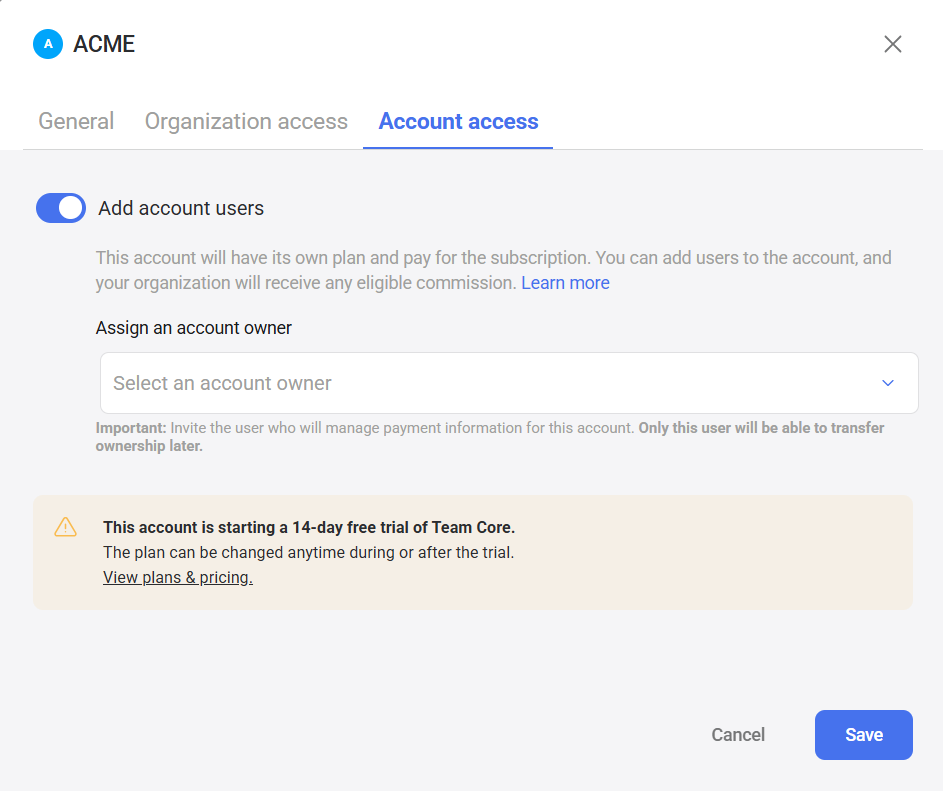
Once an account is on a trial or active subscription, additional users can be added by both organization users and account users with appropriate permissions.
FAQ
Are account managers treated differently in terms of access and permissions?
No, account managers do not receive any additional permissions within the account. All organization users granted access to the account automatically inherit the Admin role while logged in, regardless of whether they are assigned as the account manager.
How do I unlink an account, or move a standalone organization under mine?
These actions can only be performed by our team. Admins from both accounts must contact us directly with the necessary details, and we will make the required changes on the backend.


