
Availability
 Users, Editors, and Admins
 All organizations and accounts
 Exclusive to select subscription plans
MariaDB is an open-source relational database management system and a community-maintained fork of MySQL, created by MySQL's original developers. It is wire-compatible with MySQL and is commonly self-hosted on Linux servers or deployed through cloud platforms such as AWS, Google Cloud, and DigitalOcean. Connecting MariaDB to Databox lets you pull data directly from your database, build datasets using SQL queries, and visualize business-critical figures alongside data from your other connected tools.
If you've already established a connection, you can reuse it to add new data sources to your Databox account.
Databox only reads data from your database — it never writes to it. Create a dedicated user with SELECT-only privileges scoped to the Databox IP address. Connect to your MariaDB server as an administrative user and run the following commands.
CREATE USER 'databox'@'52.4.198.118' IDENTIFIED BY 'your_secure_password';
GRANT SELECT ON your_database.* TO 'databox'@'52.4.198.118';
FLUSH PRIVILEGES;
Replace your_database with the name of the database you want to connect, and your_secure_password with a strong password. If you need to grant access to multiple databases, repeat the GRANT statement for each one.

By default, MariaDB binds only to 127.0.0.1 and does not accept connections from remote hosts. To allow Databox to connect, update the bind-address setting in your MariaDB configuration file.
- Open your MariaDB configuration file. The location varies by distribution:
- Debian/Ubuntu:
/etc/mysql/mariadb.conf.d/50-server.cnf - RHEL/CentOS/Fedora:
/etc/my.cnfor/etc/my.cnf.d/mariadb-server.cnf
- Debian/Ubuntu:
- Find the
bind-addressline and change its value:bind-address = 0.0.0.0 - Save the file and restart MariaDB:
sudo systemctl restart mariadb

Allow inbound TCP traffic on port 3306 from the Databox IP address. The command depends on which firewall tool your server uses.
UFW (Debian/Ubuntu):
sudo ufw allow from 52.4.198.118 to any port 3306 proto tcp
sudo ufw reload
firewalld (RHEL/CentOS/Fedora):
sudo firewall-cmd --permanent --add-rich-rule='rule family="ipv4" source address="52.4.198.118/32" port protocol="tcp" port="3306" accept'
sudo firewall-cmd --reload
iptables:
sudo iptables -A INPUT -p tcp -s 52.4.198.118 --dport 3306 -j ACCEPT- In Databox, go to Data manager > Data sources > + Add data source
- Search for MariaDB and click Connect.
- Fill in the connection form:
- Data source name — a label for this connection in Databox.
- Host — the public IP address or hostname of your MariaDB server (e.g.,
203.0.113.42ordb.example.com). - Port — the port MariaDB listens on. The default is
3306. - User — the MariaDB username created in Step 1.
- Password — the password for that user.
- Database name (optional) — the specific database to connect to. Leave blank to connect at the server level.
- Timezone — the time zone used to interpret date values in query results. Defaults to
Etc/UTC.
- Select an SSL/TLS mode (see SSL/TLS below).
- Click Connect.
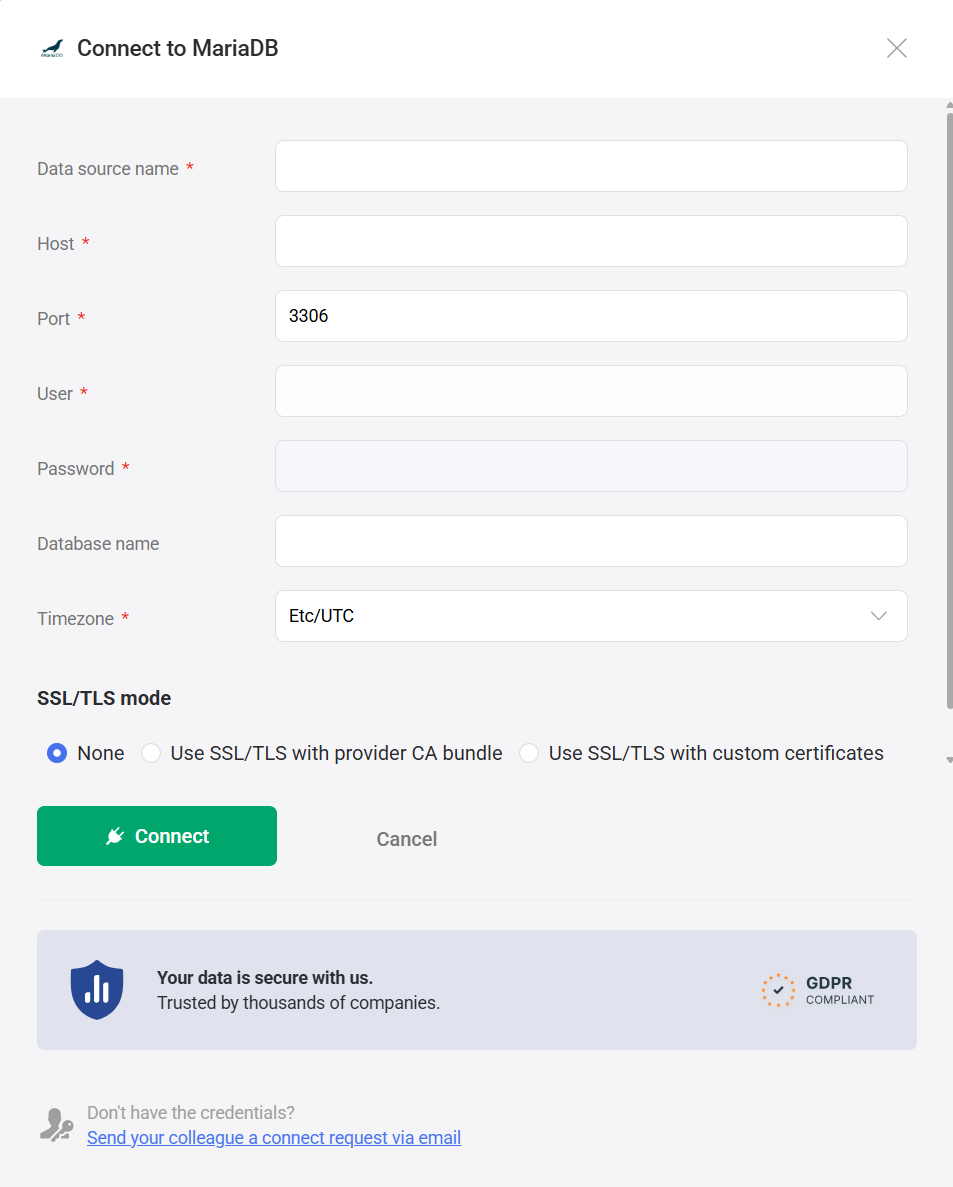
Databox offers three SSL/TLS modes when connecting to a database. Choose the one that matches your server's configuration.
| Mode | Description |
|---|---|
| None | The connection is made without SSL/TLS encryption. Use this only when your server does not have SSL enabled. |
| Use SSL/TLS with provider CA bundle | The connection uses SSL/TLS and authenticates the server using a regional CA bundle managed by your cloud provider (for example, Amazon RDS). When you check Verify server certificate using regional CA bundle, an additional CA certificate bundle (ssl-ca) field appears, where you can paste your provider's CA certificate. |
| Use SSL/TLS with custom certificates | The connection uses SSL/TLS with certificates you supply directly. When Verify server certificate is checked, you must provide a CA certificate (ssl-ca). You may also supply a Client certificate (ssl-cert) and Client private key (ssl-key) for mutual TLS. If Verify server certificate is unchecked, only the client certificate and private key fields are shown. |
MariaDB supports SSL/TLS connections using certificates you manage on the server. To use SSL with server certificate verification, copy the contents of the CA certificate used to sign your MariaDB server's certificate and paste it into the CA certificate bundle (ssl-ca) field in Databox. On a self-managed server, the CA certificate is typically located at /etc/mysql/ssl/ca-cert.pem or a path configured in your MariaDB server settings. For step-by-step instructions on configuring each SSL mode, see Enable SSL/TLS for your database connection.
The MariaDB integration supports the creation of datasets, which allow you to define and shape the specific data you want to use for reporting in Databox. Datasets make it easier to focus on the most relevant information, enabling you to filter, visualize, and analyze metrics across projects, teams, and clients without writing complex queries each time.
- Select a table: Pick the appropriate schema within that database.
- Select columns: Browse and select the specific columns (fields) from your tables or views to include in your dataset. These columns define the structure and content of your dataset.
For more advanced use cases, you can write a custom SQL query instead of selecting columns manually. This allows you to:
- Join multiple tables
- Apply filters and aggregations
- Format or transform data before importing it into Databox
Your query must return a valid tabular result to be used as a dataset.
- MariaDB documentation — Official MariaDB Knowledge Base, covering installation, configuration, user management, replication, storage engines, and security.
- MariaDB account management — Reference for
CREATE USER,GRANT, and related SQL commands used to manage database users and privileges.
For comprehensive details on metrics, data availability, templates, specifications, usage guidelines, and other key information, refer to the resources listed below.


FAQ
My server is hosted on a cloud provider — do I need to do anything extra?
Yes. Cloud providers maintain a network-level firewall separate from your OS firewall. In addition to the OS-level firewall rule in Step 3, you must add an inbound rule allowing TCP on port 3306 from 52.4.198.118 in your provider's console — for example, an AWS VPC security group, a Google Cloud firewall rule, or an Azure network security group.
What should I do if Databox cannot connect to my MariaDB server?
Check the following in order:
bind-addressin the MariaDB configuration is set to0.0.0.0(or your server's public IP), and MariaDB has been restarted since the change.- The OS-level firewall allows TCP on port
3306from52.4.198.118. - Any cloud provider network firewall also allows port
3306from52.4.198.118/32. - The MariaDB user was created with
'databox'@'52.4.198.118'as the host — not'%'or'localhost'. RunFLUSH PRIVILEGES;after any user or grant changes.


