
Availability
 Users, Editors, and Admins
 All organizations and accounts
 One or more features exclusive to select subscription plans or add-ons
Intercom is a customer service and messaging platform that helps businesses support customers through live chat, AI-powered automation, and a shared team inbox. It brings conversations from email, chat, and other channels into one place, enabling support teams to resolve issues faster and deliver consistent customer experiences. Connecting Intercom to Databox lets you track conversation volume, team response times, and customer engagement data alongside metrics from your other tools, so you can monitor support performance and identify trends without switching between platforms.
If your credentials don't include full access to the data source, make sure your access level meets any permission requirements listed in the Specification section of the integration's page in the Metric Library.
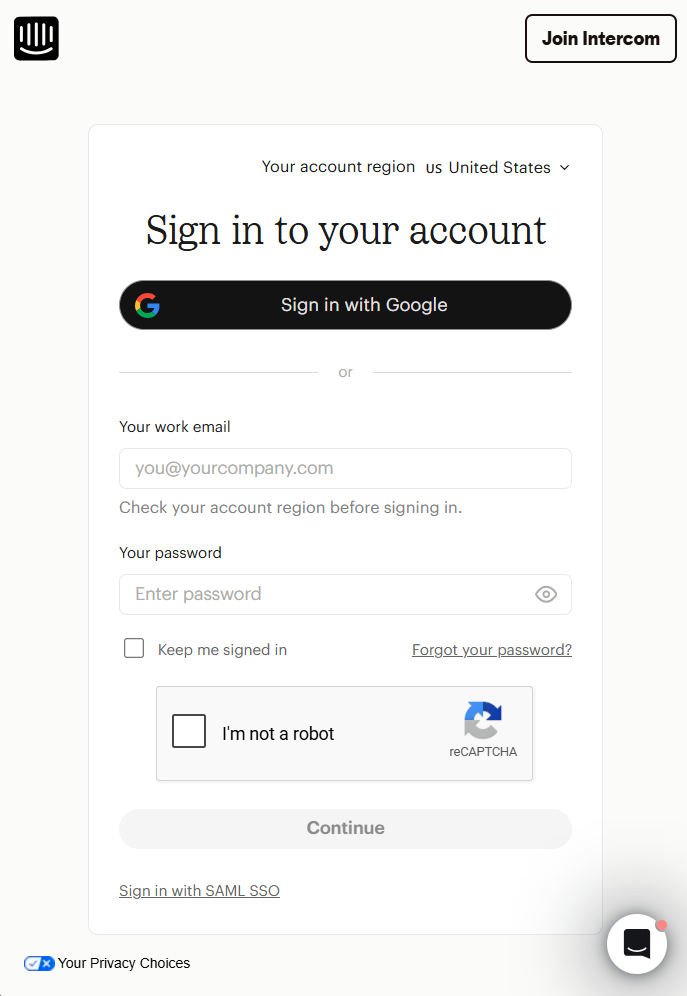
To connect Intercom to your Databox account for the first time, sign in using your Intercom credentials. Enter your Your work email and password, then click Continue, or click Sign in with Google to authenticate using your Google account.
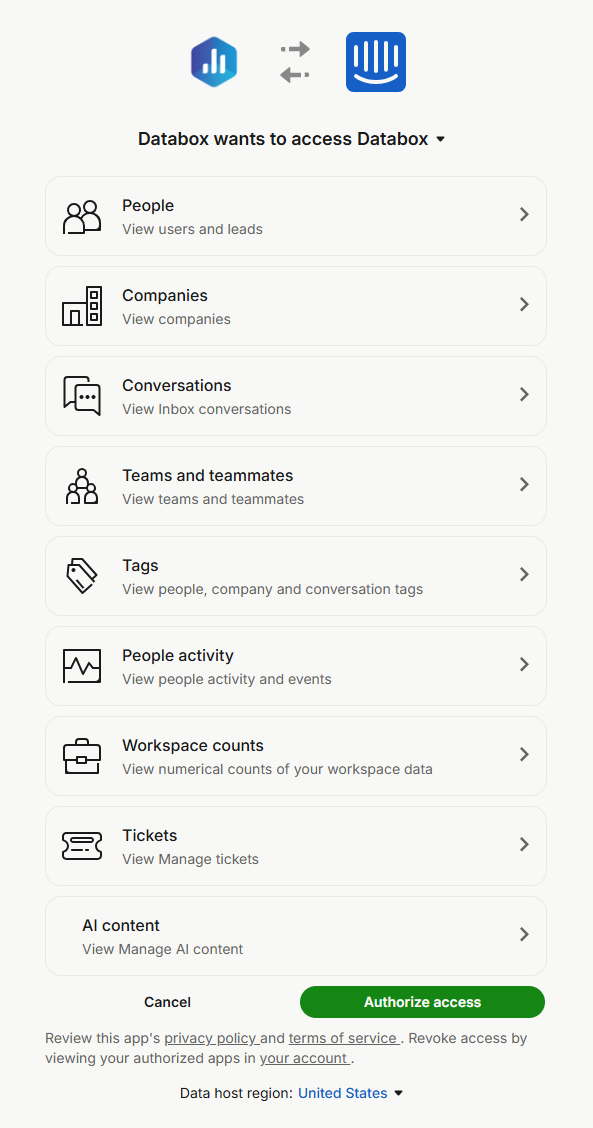
Intercom will display the workspace your account has access to and list the permissions Databox requires. Review the permissions, then click Authorize access to complete the connection.

The Intercom integration supports the creation of datasets, which allow you to structure and format your Intercom data for more flexible reporting in Databox. By organizing your data into a tabular format, datasets make it easier to filter, segment, and visualize key metrics across projects, clients, and team members.
The entity relationship diagram (ERD) below illustrates how data is organized within the Intercom integration, displaying the available views and columns, as well as the relationships between them (primary and foreign keys). This diagram represents the schema, or structure, of the data and helps you understand the underlying data model. With this context, you can create datasets using the relevant views and columns to build custom metrics tailored to your reporting needs.
For comprehensive details on metrics, data availability, templates, specifications, usage guidelines, and other key information, refer to the resources listed below.


