# Guide: Using Google Play with Databox

## How to connect Google Play to Databox

![](/assets/guide-using-google-play-with-databox_1.b3a76403378dab27149ea0a265af5254d6318346f28575e7a3830b8d8f1f0d51.4783b0ec.gif)

To connect a Google Play Account in Databox, go to **Data Manager > + New connection**. Type **Google Play** in the search bar and click on the green **Connect** button.

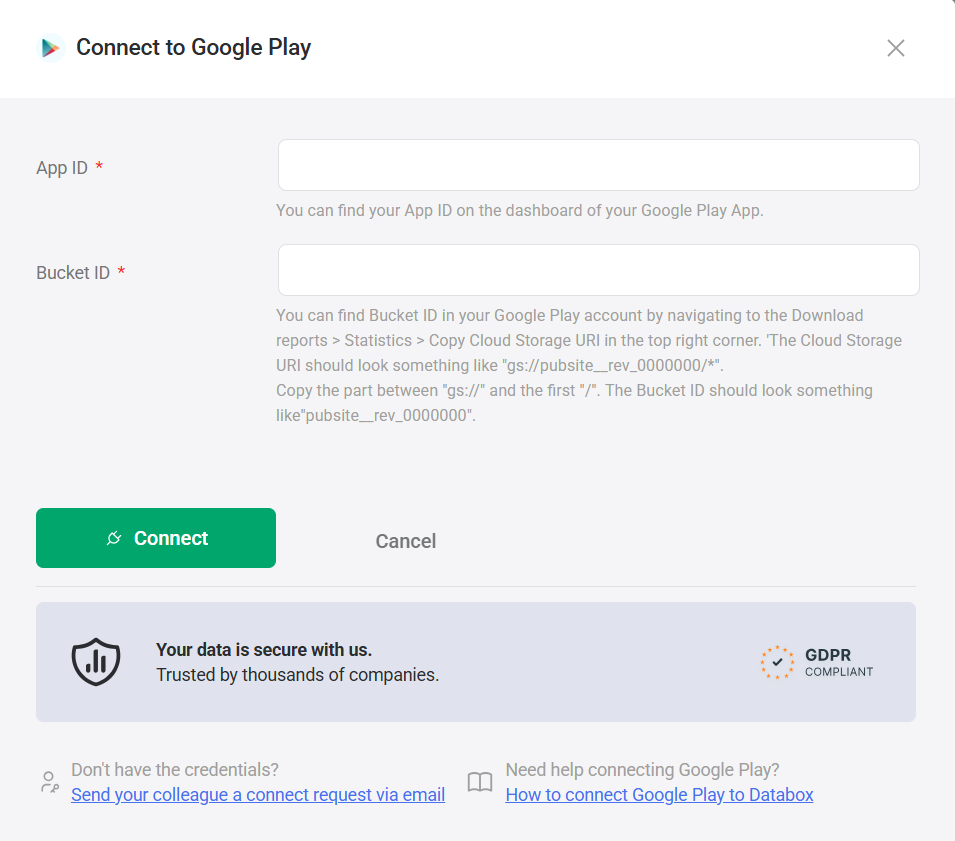
This will open the  **Authorization**window, which is where you will be prompted to enter your **Google Play** App ID and Bucket ID.

![](/assets/guide-using-google-play-with-databox_2.09698be779f071381ea37f6bfb7bfc0ea22c482a010ae96300e5ec6d744bbebf.4783b0ec.png)

To find your App ID and Bucket ID in Google Play, follow the steps below:

1 . Login to your Google Play Account

1. Navigate to **All Apps**on the lefthand menu
2. Search for **APP ID** on the list of All Apps


![](/assets/guide-using-google-play-with-databox_3.331f9d9b39c655d26138a518605d943f78de7cefce94847abe335e66f11bd51e.4783b0ec.png)

1. Next, navigate to  **Download reports**on the lefthand menu
2. Select **Statistics** from the lefthand sub-menu
3. In the top right corner of the **Download statistics** report click **Copy Cloud Storage URL**


![](/assets/guide-using-google-play-with-databox_4.86ea6d4f624c881f09b0936be83b23249aa36ea3e018cd2e5e7f6bc73288297a.4783b0ec.png)

The Cloud Storage URI should look something like "gs://pubsite__rev_0000000/*". Copy the part between "gs://" and the first "/" in order to extract the Bucket ID. The **Bucket ID** should look something like **pubsite__rev_0000000**.

Once you entered App ID and Bucket ID in Databox, click  **Activate**. You will be prompted to login into your **Google** account and choose the correct Google Account to connect. The selected Google account must have access to the Reports in Google Cloud/Google Play Console.

Learn how to check Google account access permissions in Google Play Account [here](/guide-using-google-play-with-databox).

## What Google Play permissions do you need to connect to Databox?

In Google Play, "Admin", "Finance," "Product Lead" and "Release Manager" roles have the necessary permissions to connect and sync data with Databox.

To check your role and permissions in Google Play or add a user with the necessary permissions, follow the steps below:

1. Login to your Google Play Account
2. Navigate to **Settings** on the left-hand menu
3. Select **Users and Permissions** from the left-hand sub-menu
4. Select a User from the list and click the **Settings** button, or click **Invite New User** button if you are adding a new user
5. In the **Role** section, select a **Role** from the drop-down. Roles that have the necessary access to Google Play Reports are "Finance," "Product Lead" and "Release Manager."


![](/assets/guide-using-google-play-with-databox_5.983783eef20c801f67ced47bf214285d1f96e0ff65348438a659f0d5ead6b3a4.4783b0ec.png)

1. Click **Save changes** to save the settings


## How much historical data is synced when you first connect Google Play to Databox?

When you connect a new Google Play Data Source in Databox, 2 months worth of historical data is initially synced.

Certain Metrics may have more or less historical data available. For more information about the amount of historical data available for a specific Metric, please contact our Support Team at help@databox.com.

Once your Google Play Data Source is connected and actively syncing data, we store the data that's collected in our own database. This allows us to accumulate more data over time as more data syncs are made so that you can report on more historical Google Play data in your Databox reports. Learn more [here](/data-sync-storage-security-in-databox).

## What time zone does Google Play data sync in?

Google Play data is synced in the time zone set in UTC.

## How often does Google Play data sync?

Google Play data will only sync once per day. Additionally, the most recent data will be from 2 days ago. As a result, "Today" and "Yesterday" are not Date Range options for Google Play Metrics.

This is consistent with how Google Play data updates within the Google Play app.

## How to access pre-built Google Play Templates

![](/assets/guide-using-google-play-with-databox_6.60f6fbd99e8ab47f56abd0927ac195b36f7ded8a91b0db6653543e849143dcae.4783b0ec.gif)

1. Navigate to **Databoards > Public Templates**
2. In the **Data Source** drop-down list, select **Google Play**
3. To view a preview of the Template populated with dummy data, click **Preview**
4. To pull the Template into your Account and re-populate it with your own Google Play data, click **Use Template**
5. Select the appropriate Google Data Source from the drop-down list to complete the process. The Databoard will be re-populated with data from the selected Google Play Account and can be found on the **Databoards** page


Once the Databoard is available on the **Databoards** page, it is completely disconnected from the public Template. Therefore, you can further customize this Databoard to meet your specific needs using the [Designer](/overview-designer).

## How to build a Databoard using Google Play data

![](/assets/guide-using-google-play-with-databox_7.a528256007ced65a34bc656ff644a629a02eac0eb69998b1491189424b249b70.4783b0ec.gif)

1. Navigate to **Databoards** > **+ New Databoard** > **Start Blank**
2. Click on the  **Metric Library** icon on the left-hand side of the Designer
3. Select the appropriate Google Play Account from the **Data Source** drop-down list in the **Metric**  **Library**
4. View the list of pre-built Google Play Datablocks in the **Metric Library**. Drag and drop your selected Datablock onto your Databoard
5. If a pre-built Datablock isn't available for your use case, click on the **Visualization Types** icon under the **Metric Library**icon
6. View the list of Visualizations available in Databox. Drag and drop your selected Visualization onto your Databoard
7. Click on the Datablock on the Databoard to open the corresponding **Datablock Editor**on the right-hand side of the Designer
8. Select the appropriate Google Play Data Source and Metric in the right-hand Datablock Editor . This will update the Datablock and it will populate the Datablock with the corresponding data
9. Complete steps 4-8 until your Databoard is complete


View a full list of Google Play Metrics available in Databox [here.](https://app.databox.com/data-manager/metrics/GooglePlay)